How to Set Up a One-Tap Launch App Shortcut
Every extra tap between you and the app you need adds up over a day of picking up your phone dozens of times. Android actually offers several distinct ways to shave that down to a single tap, and knowing which one fits which situation makes a real difference in how fast your phone feels.
Quick answer: The fastest native launch app shortcut on Android is pinning an icon to your home screen dock, since it stays one tap away on every page. Long-press app shortcuts jump to a specific in-app action in two taps, Quick Settings tiles are built for toggles rather than app launching, and a notch or cutout overlay shortcut like Action Notch is the only method that reaches a favorite app from inside other apps without returning to the home screen first.
What you'll learn
- The four built-in Android layers for shortcutting into an app, plus a fifth overlay option
- How to pin an app icon straight to your home screen or dock
- How to use app shortcuts to jump to a specific action, not just the app itself
- Why Quick Settings tiles aren't meant for launching apps
- How a notch or cutout shortcut reaches a favorite app from any screen
The Layers of "Instant" on Android: Icon, Shortcut, Tile, or Overlay
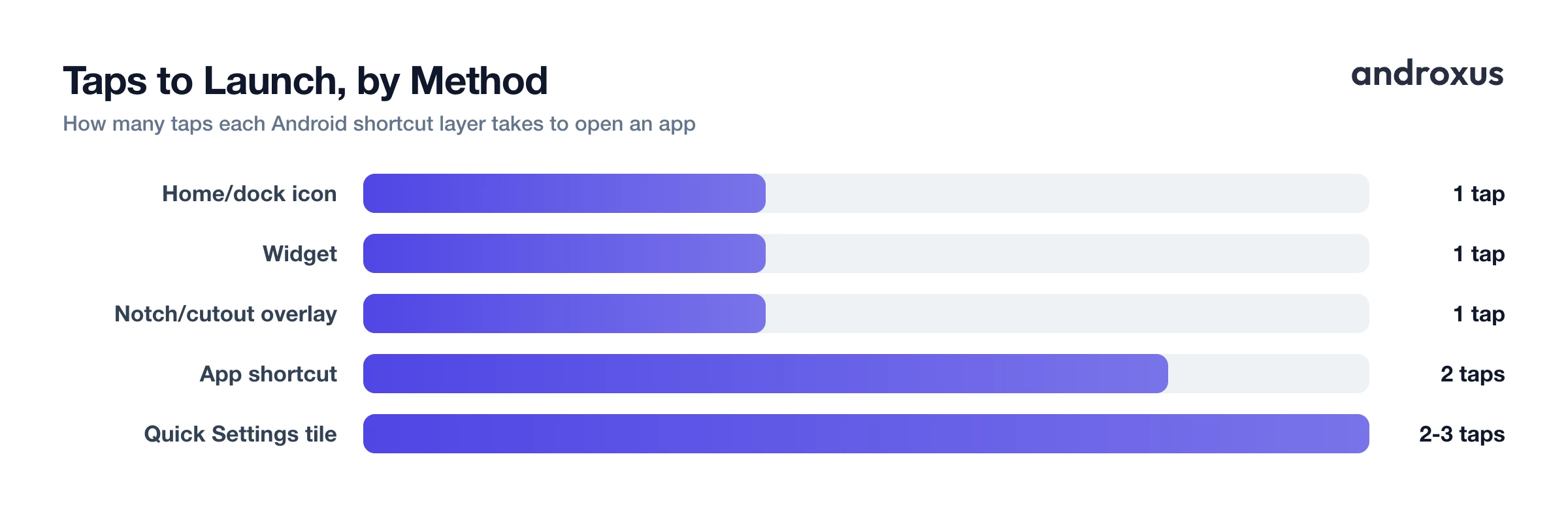
A single tap on a home screen icon is the fastest native launch path Android offers. Everything else, app drawer search, folders, widgets, adds at least one extra step before the app opens.
Android actually gives you four distinct built-in ways to shortcut into an app or a specific app action, and each is suited to a different use case: home screen icons, long-press app shortcuts, Quick Settings tiles, and widgets. App shortcuts specifically, the menu that appears when you long-press an icon, were introduced in Android 7.1 Nougat (API level 25) so users could jump to an in-app action without opening the app first.
There's also a fifth layer that lives outside the home screen entirely: third-party accessibility-based overlay tools, like notch or cutout shortcut apps. These are useful precisely when the home screen itself is buried under whatever app you're currently using, since they don't require backing out to reach them.
Pin an App Icon Straight to Your Home Screen or Dock
For the single app or two you open more than anything else, nothing beats a permanently pinned icon.
Swipe up from the bottom of the screen to open the app drawer, where every installed app is listed alphabetically. Press and hold the icon you want until it lifts or the drawer shrinks, then drag it onto the home screen and lift your finger to drop it. On Samsung's One UI, long-pressing an icon instead opens a pop-up menu with an "Add to Home" option that places the icon without any dragging required.
The dock, the row of icons that stays fixed across every home screen page, typically holds 4 to 6 icons depending on the launcher and grid density. It's the single tap-fastest spot on the entire phone for the apps you rely on daily, since it's visible no matter which home screen page you're on. Icons can be rearranged anytime by long-press and drag, and removed with "Remove from Home screen" without uninstalling the app itself.
Use App Shortcuts to Jump to a Specific Action, Not Just the App
Sometimes what you want isn't the app, it's one specific thing inside it, and app shortcuts exist for exactly that.
Long-pressing most app icons opens a small menu of shortcuts to specific actions: Gmail offers "Compose," Google Maps offers "Home" or "Work" navigation, and Camera offers things like "Take a selfie" or "Record video." These come in two flavors, static shortcuts that are built directly into the app and dynamic shortcuts the app updates at runtime, and Android caps the combined number shown per app at a device-defined limit, commonly 4.
From that long-press menu, you can drag an individual shortcut out onto the home screen to pin it permanently as its own icon, separate from the app's main icon. Once pinned this way, that shortcut keeps working even if the app later removes it from its dynamic shortcut list, since pinned shortcuts aren't subject to the same 4-shortcut cap that governs the long-press menu.
Quick Settings Tiles: Fast Toggles, Not Really App Launchers
Quick Settings is genuinely fast to reach, but it's built for a different job than opening apps.
Swiping down twice from the top of the screen, or once with two fingers, opens the Quick Settings panel of toggle tiles like Wi-Fi, flashlight, and rotation lock. Tapping the pencil or edit icon at the bottom lets you add, remove, and reorder tiles, including third-party tiles that apps have registered.
Google's own developer guidance for Quick Settings tiles explicitly advises against using a tile to open an app, recommending a launcher icon or app shortcut instead, so this layer is best reserved for one-tap toggles rather than app launching. A handful of third-party utilities add an "App" tile type as a workaround, but that isn't a native Android capability, and results vary by device.
Widgets and Folders for Grouping Multiple One-Tap Launches
Widgets and folders solve two opposite problems: widgets add information to a tap, and folders trade a bit of speed for a tidier home screen.
Long-pressing empty home screen space and choosing "Widgets" reveals each app's available widgets, including small 1x1 shortcut-style widgets that behave like a single-tap icon. Some widgets go a step further and surface live content, like a calendar's next event or a note-taking app's "new note" button, so the tap both opens and starts an action in one motion.
Grouping several app icons into a folder keeps the home screen tidy, but it adds a tap to open the folder before the app tap itself, so it trades speed for organization. For the apps you open dozens of times a day, an ungrouped icon in the dock beats a folder every time.
When the Home Screen Itself Is Buried: Notch or Cutout Shortcuts
All four native layers above share one limitation: they live on the home screen, which means backing out of whatever you're currently doing to reach them.
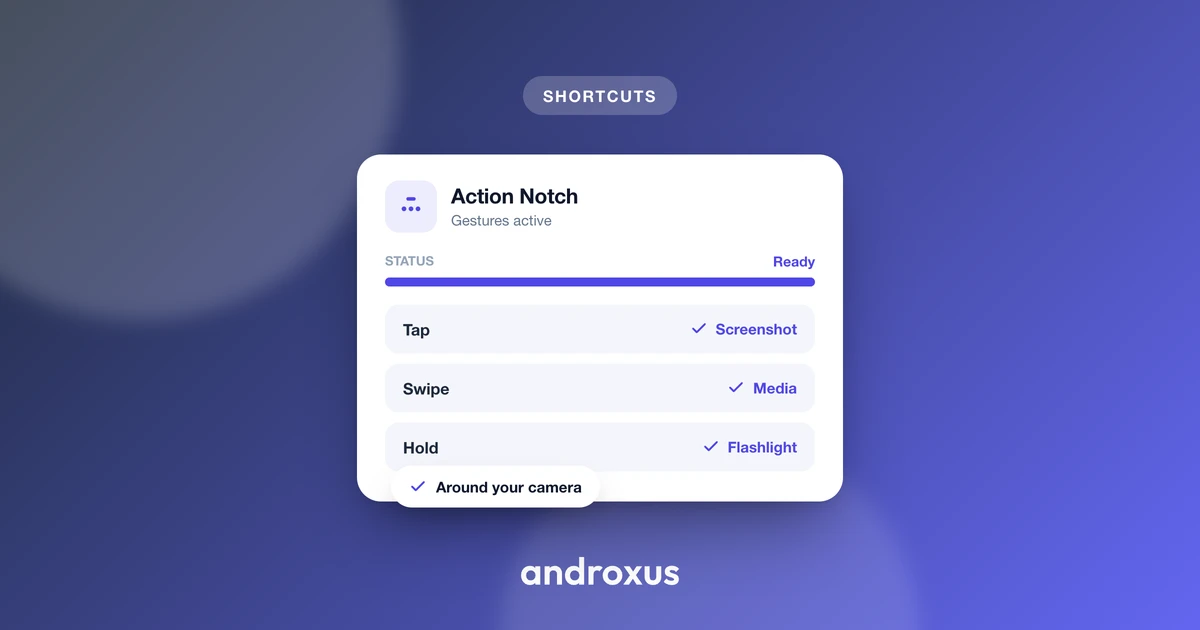
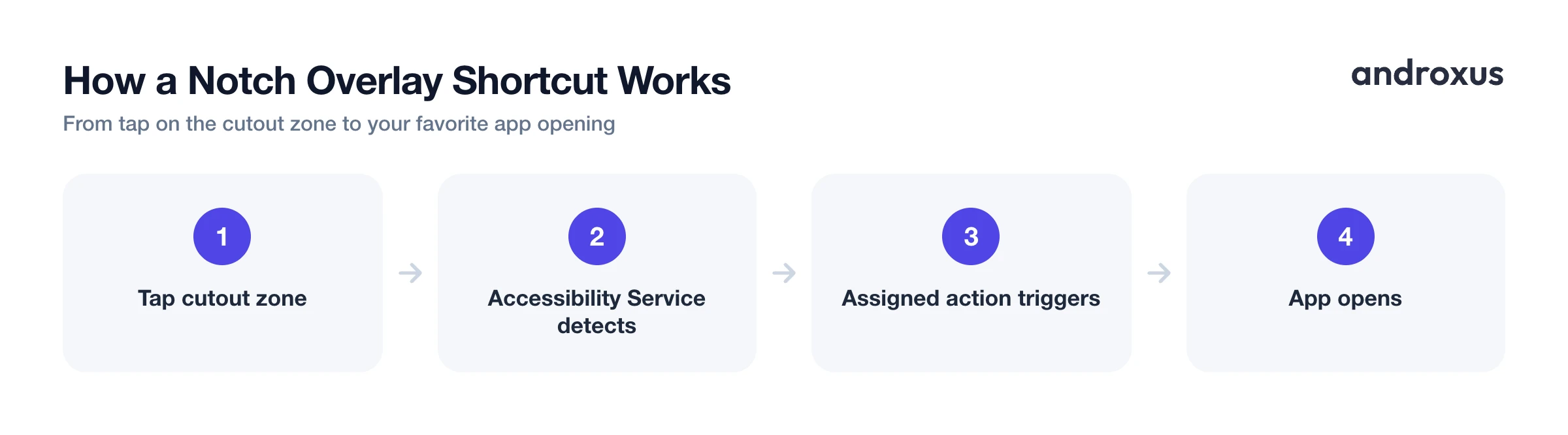
Some Android phones have a camera cutout or notch that normally sits idle outside of showing the camera lens area. Apps like Action Notch use Android's Accessibility Service to draw an invisible touch zone around that cutout, letting a tap, double-tap, long-press, or swipe there trigger a chosen action, such as opening a favorite app, launching the camera, or opening recent apps, from whatever screen the phone is already on.
This is a software overlay and shortcut layer only. It does not add a physical Dynamic Island or modify the display hardware in any way; it simply makes the existing cutout area tappable. Because it relies on the Accessibility Service, which requires enabling in Settings > Accessibility, it's worth knowing what that permission covers: Android shows a system warning that an enabled accessibility service can, in principle, view screen content and observe your actions, so it's worth checking an app's permissions and privacy policy before turning this on. Treat this kind of overlay button purely as a shortcut convenience, not a replacement for the app drawer or home screen.
Comparing the Five Launch Methods
| Method | Taps to Launch | Setup Required | Works From Any Screen? | Best For |
|---|---|---|---|---|
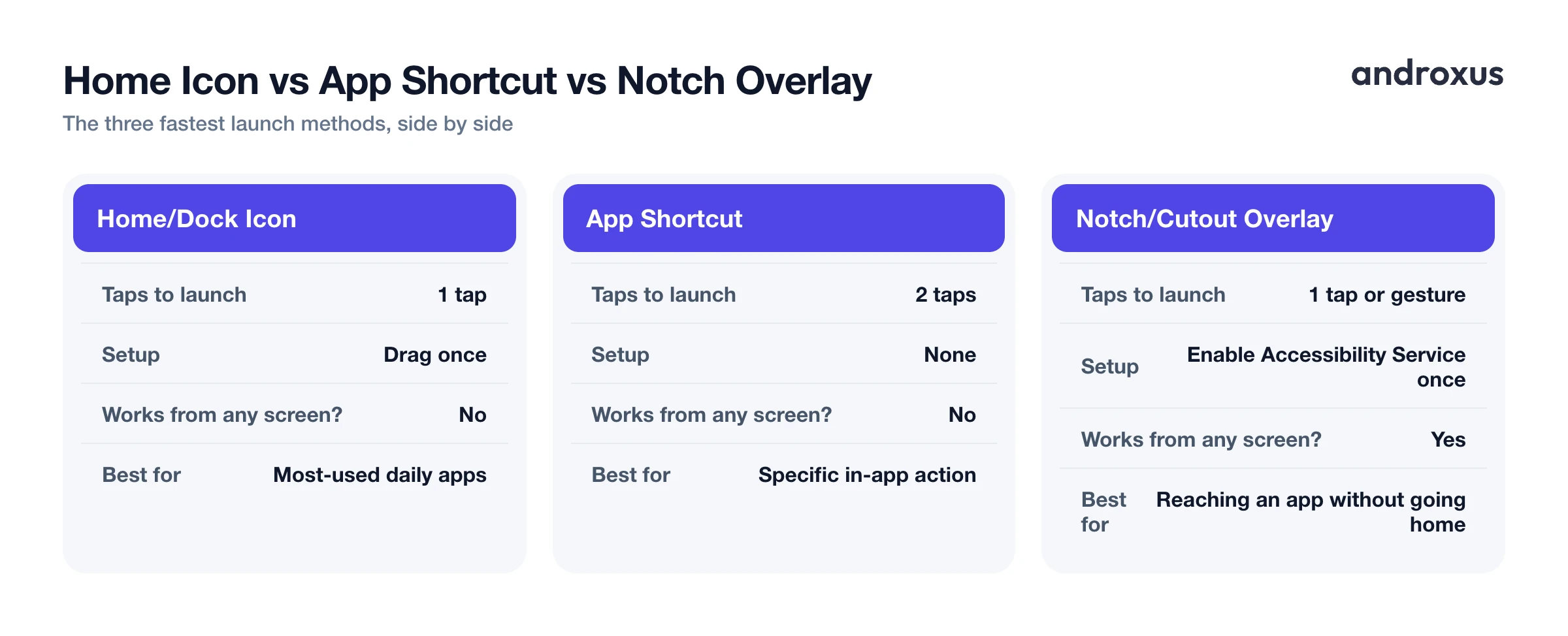
| Home screen/dock icon | 1 tap | Drag once to set up | No | Most-used daily apps |
| App shortcut (long-press action) | 2 taps | None | No | Jumping to a specific in-app action |
| Quick Settings tile | 2 to 3 taps | Edit panel once | Yes, swipe-down works anywhere | System toggles more than app launching |
| Widget | 1 tap | Drag once | No | Glanceable info plus launch |
| Notch/cutout overlay shortcut (e.g., Action Notch) | 1 tap or gesture | Enable Accessibility Service once | Yes | Reaching a favorite app without returning to the home screen |
How to Set Up a One-Tap Launch App Shortcut on Android
- Open the app drawer. Swipe up from the bottom of the home screen to reveal the full alphabetical list of installed apps.
- Long-press the app you want one-tap access to. Press and hold its icon until it lifts slightly or the drawer shrinks back to show the home screen behind it.
- Drag the icon to your home screen or dock. Without lifting your finger, drag the icon into the dock row or an open spot on the home screen, then release. On Samsung/One UI, you can instead tap "Add to Home" from the pop-up menu that appears.
- For a specific in-app action, open the shortcut menu instead. Long-press the icon and, if the app supports it, choose one of the listed actions (like "Compose" or "New note"), then drag that specific shortcut out onto the home screen to pin it as its own icon.
- Add frequently used toggles to Quick Settings. Swipe down twice from the top of the screen, tap the pencil/edit icon, and drag toggles like flashlight or rotation lock into the active tiles area for one-tap access to system functions from anywhere.
- Optional: enable a cutout overlay shortcut for reach from any screen. If your phone has a camera cutout, an app like Action Notch can turn it into a tappable shortcut zone; assign a favorite app or action to a tap, double-tap, long-press, or swipe gesture so it opens without returning to the home screen first.
Key Takeaways
- A launch app shortcut pinned to the home screen dock is the fastest native option Android offers, always one tap away on every page.
- App shortcuts, revealed by long-pressing an icon, jump to a specific action inside an app rather than just opening it, and can be pinned individually to bypass the shortcut menu's cap.
- Quick Settings tiles are built for system toggles, not app launching, per Google's own developer guidance.
- Widgets add live glanceable info to a one-tap launch, while folders trade speed for a tidier home screen.
- A notch or cutout overlay shortcut is the only method here that reaches a favorite app from inside other apps, since it doesn't require returning to the home screen first.
Frequently asked questions
What's the fastest way to launch an app on Android with a single tap?
Pinning the app's icon to your home screen dock is the fastest native option since it's always one tap away on every home screen page. A notch or cutout overlay shortcut is the only option that matches that one-tap speed from inside other apps too, without returning to the home screen first.
What's the difference between a home screen icon and an app shortcut?
A home screen icon opens the app's main screen. An app shortcut, revealed by long-pressing that icon, jumps straight to one specific action inside the app, like composing an email or starting navigation home, without landing on the main screen first.
How many app shortcuts can I see when I long-press an icon?
Android caps the combined number of static and dynamic shortcuts an app can show in that menu, commonly 4, though the exact number is set by the device and launcher. Shortcuts you drag out and pin to the home screen individually are not limited by that same cap.
Can I use Quick Settings tiles to open apps?
Not by default. Android's own guidance for developers recommends against building a tile that just launches an app, since tiles are meant for quick toggles like Wi-Fi or flashlight. Some third-party tile apps add app-launching tiles as a workaround, but it isn't a built-in Android behavior.
Do I need to root my phone to add one-tap app shortcuts?
No. Pinning icons, using long-press app shortcuts, adding widgets, and enabling an Accessibility Service for a notch or cutout overlay shortcut are all standard, non-root features available on stock Android and most OEM skins.
What does a notch or cutout shortcut app actually change on my phone?
It adds a tappable overlay zone around the existing camera cutout using the Accessibility Service; it does not alter the physical screen or add real hardware capability. Tapping, double-tapping, long-pressing, or swiping on that zone triggers whatever action you've assigned, such as opening a favorite app, from any screen.
