How to Make Phone Louder Safely
Your phone sounds quiet in a noisy room, on a run, or over a cheap Bluetooth speaker, and cranking the slider to the top doesn't seem to help much, which is why "how to make phone louder" is one of the most common Android search questions. Before you assume the hardware is just weak, it's worth understanding what's actually limiting the volume and what can be safely done about it.
Quick answer: To make your phone louder, first rule out a blocked speaker grille or a low media volume stream, since these are the most common and free fixes. If the hardware is clean and turned up, a Bluetooth accessory may be capping volume through absolute volume syncing, which you can check in Developer Options. For a genuine increase in loudness, a system-wide volume booster amplifies the existing audio signal within your phone's hardware limits, using a limiter to prevent distortion, but no software can make a phone louder than its speaker or amplifier was built to go.
What you'll learn
- Why phones sound quieter than expected, from blocked speakers to separate volume streams
- How volume booster apps technically work, and what they can't do
- Which built-in Android settings to check before installing anything
- How to use a system-wide booster like Flow Equalizer's Volume Booster the right way
- How to keep boosted audio from distorting or damaging your hearing
Why your phone sounds quieter than it should
Several things can make a phone seem quiet even when nothing is broken.
Android splits audio into separate volume streams: media, ring, notification, alarm, call, and system. Media volume can be turned down or muted independently even if the ring volume looks fine, which is a common reason "the phone is quiet" turns out to be one stream that was never adjusted.
Physical blockage is a frequent and overlooked cause. Dust, lint, or a thick case over the speaker mesh muffles sound because sound waves can't pass cleanly through clogged openings, even at maximum volume.
Phone makers also set a hardware output ceiling for the speaker and headphone jack, partly to limit distortion and partly for hearing-safety reasons. You cannot exceed that physical ceiling with software, only get closer to using all of it.
Bluetooth accessories often use Android's absolute volume syncing, which links the phone's slider to the accessory's own volume and can make wireless audio sound quieter than wired audio from the same phone.
Some streaming apps apply their own loudness normalization to individual tracks, which can make certain songs or videos sound quieter than others even at the same phone volume setting.
How a volume booster actually works
It helps to know what a volume booster is doing under the hood, because it explains both what it can fix and what it can't.
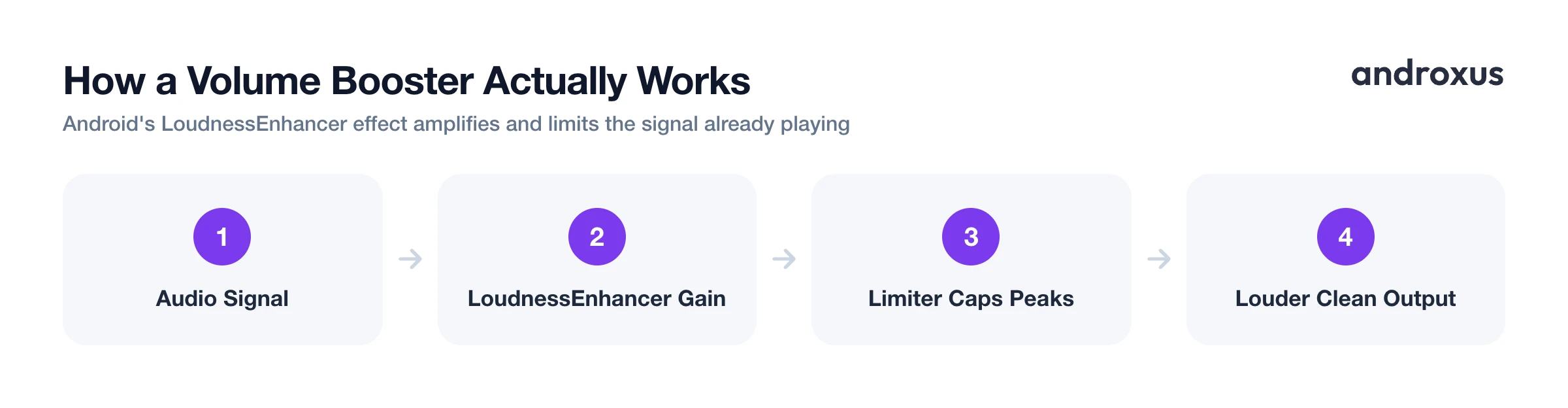
Android exposes a built-in audio effect called LoudnessEnhancer that amplifies a signal using a target gain value, measured in millibels. This is the same category of mechanism that system-wide volume boosters build on. The effect compresses or limits any part of the signal that would exceed the sample range the platform hardware supports, which is what prevents, or at least reduces, harsh digital clipping when you push volume past the unboosted maximum.
A volume booster works on the system audio output, so it can amplify and reshape sound that's already playing. It cannot add audio detail that was never in the source, and it cannot push output past what the phone's amplifier and speaker can physically handle. An anti-distortion limiter, the kind used in apps like Flow Equalizer's Volume Booster, continuously watches peak levels and reins in gain on loud transients, which is what keeps a boosted mix from turning into constant crackle.
Boosting is different from equalizing. An EQ reshapes which frequencies are emphasized, such as a bass boost, while a volume booster raises overall gain. The two are often paired but solve different problems.
Built-in Android settings worth checking first
Before installing anything, a few free checks solve the problem for a lot of people.
| Setting | What to check | Where to find it |
|---|---|---|
| Media volume stream | Confirm it isn't lowered separately from ring volume | Volume rocker, expand the panel, or Settings > Sound & vibration |
| Sound Amplifier | Built-in speech and ambient sound boost via headphones | Settings > Accessibility > Sound Amplifier |
| Absolute volume sync | Can cap Bluetooth volume below the phone's true max | Settings > System > Developer options |
| OEM sound enhancer | Dolby Atmos, Adaptive Sound, or similar clarity tools | Settings > Sound (varies by manufacturer) |
| Speaker grille | Dust or lint muffling output | Physical inspection, gentle cleaning |
Android's Accessibility > Sound Amplifier, built into Pixel and many Android 8.1+ phones, uses on-device processing to amplify speech and ambient sound through wired or Bluetooth headphones. It's aimed at hearing accessibility rather than music playback, so it's a different tool for a different job.
If a Bluetooth speaker or earbuds sound capped, check Developer Options for "Disable absolute volume," which stops the phone from syncing its volume ceiling to the accessory. Regularly wiping down or gently brushing the speaker grille is a zero-cost step that restores lost volume caused by dust buildup, before reaching for any app at all.
Using a volume booster app the right way
Once the free fixes are ruled out and you still want more headroom, a volume booster becomes the right tool.
A system-wide volume booster like Flow Equalizer applies its gain and limiter to whatever is playing through the speaker, wired headphones, or Bluetooth, rather than to one app at a time. Because gain is bounded by the hardware and managed by a limiter, the honest goal is to use more of the phone's available headroom cleanly, not to exceed what the amplifier and speaker were built to handle.
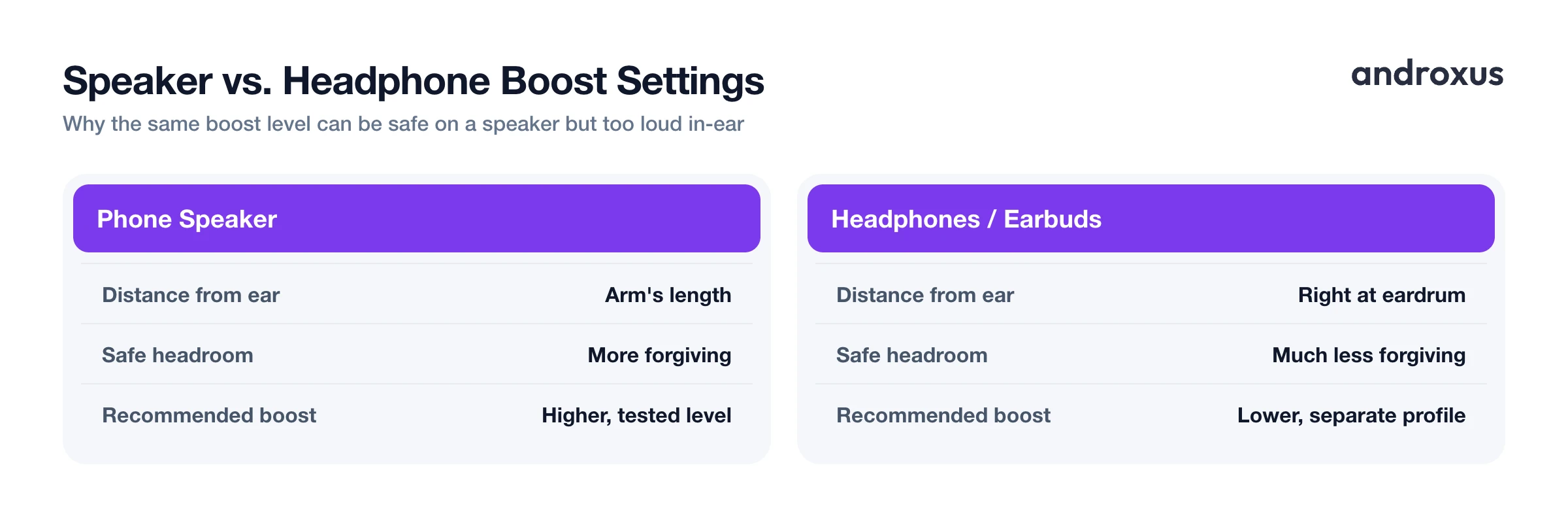
Independent toggles for bass, volume, and a 3D virtualizer effect, as in Flow Equalizer, let you raise loudness without automatically also boosting bass, which matters because bass-heavy content clips and distorts sooner than midrange or vocal content. Auto-apply on headphone connect is useful here too, since headphones and phone speakers have very different safe headroom: a boost level that's fine on a speaker can be uncomfortably loud through in-ear headphones. Custom profiles let you keep separate, tested boost levels for speaker versus headphone listening instead of one setting that's a compromise for both.
Keeping the boost from wrecking the audio or your ears
Louder isn't automatically better, and pushing past what the hardware can handle usually makes audio worse, not just riskier.
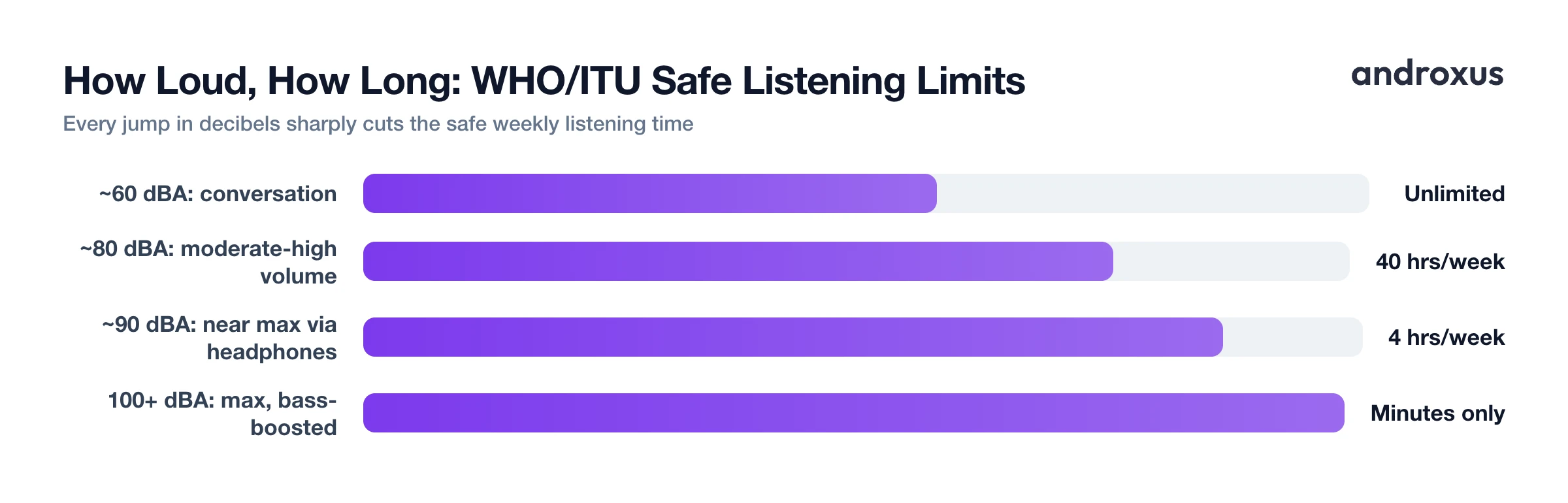
Crackling, buzzing, or a flattened, distorted bass are the clearest signs a boost has been pushed past what the hardware can cleanly reproduce. The fix is to back the gain off, not push through it. For reference, the WHO and ITU's H.870 safe listening guideline treats 80 dBA for 40 hours a week as a safe weekly sound dose:
| Sound level | Everyday comparison | Safe listening time (WHO/ITU H.870) |
|---|---|---|
| ~60 dBA | Normal conversation | Effectively unlimited |
| ~80 dBA | Busy traffic, phone at moderate-high volume | Up to 40 hours/week |
| ~90 dBA | Phone near max volume through headphones | About 4 hours/week |
| 100+ dBA | Phone at max volume, bass-boosted, sustained | Minutes, avoid sustained exposure |
A simple rule of thumb used by audiologists is the 60/60 guideline: keep volume at or below 60% and take a break at least every 60 minutes during long headphone sessions. Sustained maximum-volume playback also draws more power and can warm up the phone, which is a practical, not just hearing-related, reason to keep boosted levels for genuinely quiet content rather than as a permanent setting. Speaker-driven audio and headphone audio also have different safe ceilings, since headphones, especially in-ear ones, sit much closer to the eardrum than a phone's external speaker at arm's length.
How to make phone louder safely
- Rule out a physical or software ceiling first. Check that media volume, not just ring or notification volume, is turned all the way up, and inspect the speaker grille for dust or lint, since a blocked mesh muffles sound before any app can help.
- Clean the speaker if it looks blocked. Gently brush the speaker grille with a soft, dry brush, or use a bit of softened adhesive putty to lift out debris. Avoid needles, pins, or liquids, which can push dirt deeper or damage the mesh.
- Check for a Bluetooth volume cap. If a Bluetooth speaker or headphones sound quieter than wired audio, the phone may be using absolute volume syncing. Try adjusting volume directly on the accessory, or toggle the Disable absolute volume developer option if available.
- Try Android's built-in options. Expand the volume panel to confirm the media stream isn't lowered, and if you need clearer speech or ambient sound rather than louder music, try Android's Accessibility > Sound Amplifier feature.
- Add a system-wide volume booster for real headroom. For a genuine loudness increase across apps, a system audio effect like Flow Equalizer's Volume Booster raises the output gain within the phone's hardware limits, with its anti-distortion limiter engaged to keep peaks from clipping.
- Dial in the boost gradually. Increase the boost in small steps while playing a familiar track, and stop as soon as you hear crackling, buzzing, or flattened bass, which are signs the signal is being pushed past what the hardware can cleanly reproduce.
- Give your ears and the speaker breaks. For extended listening, follow a guideline like the 60/60 rule and keep sustained levels within WHO's 80 dBA, 40 hours a week safe listening range.
Key takeaways
- Most "quiet phone" complaints come from a blocked speaker, a lowered media volume stream, or Bluetooth absolute volume syncing, all fixable for free.
- A volume booster amplifies the audio signal that's already there and limits peaks to reduce distortion; it can't add sound that doesn't exist or exceed hardware limits.
- Bass, volume, and virtualizer effects work best as independent controls since bass-heavy content clips sooner than other content.
- Increase any boost gradually and stop at the first sign of crackling or distortion, since that means the hardware has reached its limit.
- Following a guideline like the 60/60 rule protects both your hearing and your speaker during long, loud listening sessions.
Frequently asked questions
Do volume booster apps actually add sound that isn't there?
No. They amplify the existing audio signal using a target gain, which is how Android's LoudnessEnhancer effect works, and compress or limit any peaks that would exceed what the hardware can reproduce. Nothing is synthesized: the app boosts and reshapes the output that's already being sent to the speaker or headphones.
Can a volume booster damage my phone's speaker?
Pushing any speaker to sustained maximum output with heavy clipping can stress the driver over time. A booster with a built-in limiter reduces distortion risk by capping peaks, but it can't make the hardware safe at any volume, so back off if you hear crackling or buzzing.
Why does my phone sound quieter over Bluetooth than with wired headphones or the speaker?
Many Bluetooth accessories use Android's absolute volume syncing, which links the phone's volume slider to the device's own volume, sometimes capping it lower than the phone's true maximum. Codec choice and the accessory's own amplifier also affect perceived loudness.
Does boosting the volume drain my battery faster?
Yes, modestly. Driving a speaker or amplifier harder takes more power, so louder playback for long stretches will use more battery than moderate volume.
What permissions does a legitimate volume booster need?
A booster that only amplifies playback, like a system audio effect, typically needs access to modify audio settings, not your microphone. Apps that boost ambient or live sound, such as Google's Sound Amplifier, need microphone access because they're processing sound from the room, which is a different use case.
How loud is too loud for daily listening?
The WHO and ITU's H.870 safe listening guideline treats 80 dBA for 40 hours a week as a safe weekly sound dose; at 90 dBA that safe window drops to about 4 hours a week. If you can't hear someone talking next to you at normal volume, it's too loud.
