How to Fix Distorted Audio When Boosting Volume
Cranking the volume slider only to hear a track fall apart into crackle and buzz is one of the most common audio complaints on Android. The frustrating part is that the cause is not always the same twice, sometimes it is the signal itself, sometimes it is the connection, and sometimes it is the speaker.
Quick answer: Distorted audio when boosting volume is usually clipping, the loudest peaks of the signal or the speaker's power limit get flattened once you push past a hard ceiling. If distortion appears only as volume rises, lower it a few steps or turn on an anti-distortion limiter in your EQ app. If it happens at any volume, especially over Bluetooth or at low volume too, the cause is more likely a weak connection, a low accessory battery, or a hardware fault rather than the boost itself.
What you'll learn
- Why boosting volume causes clipping and where the "ceiling" actually comes from
- How to tell clipping apart from other causes of crackling audio, like Bluetooth or hardware issues
- How a limiter prevents distortion without adding fake loudness
- A step-by-step process for diagnosing and fixing distorted audio
- Safe listening levels to keep in mind while you adjust volume
Why boosting volume causes distortion in the first place
Digital audio has a hard ceiling, engineers call it 0 dBFS. A waveform that gets pushed louder than that ceiling does not get louder past that point, instead its peaks are simply cut off flat rather than allowed to follow their natural curve. That flattening is called clipping.
Clipped peaks turn a smooth wave into a squared-off one, and squared-off waves carry harsh, unnatural high-frequency harmonics that were never in the original recording. That is the crackling or buzzing sound people hear when audio is pushed too loud.
The same thing happens on the analog side, after the signal leaves the software. A phone speaker or a headphone driver has its own maximum power and excursion limit, set by its physical hardware. Push the volume past that point and the sound distorts even if the digital signal feeding it was perfectly clean.
This matters for volume boosters specifically, because they amplify the entire signal at once, including the loudest peaks. A boost that sounds perfectly fine on a quiet verse can slam the chorus straight into the ceiling. That is also why distortion tends to show up specifically on bass-heavy or loud sections of a song rather than across the whole track: those sections already have the least headroom to spare.
Distortion vs. other causes of crackling audio
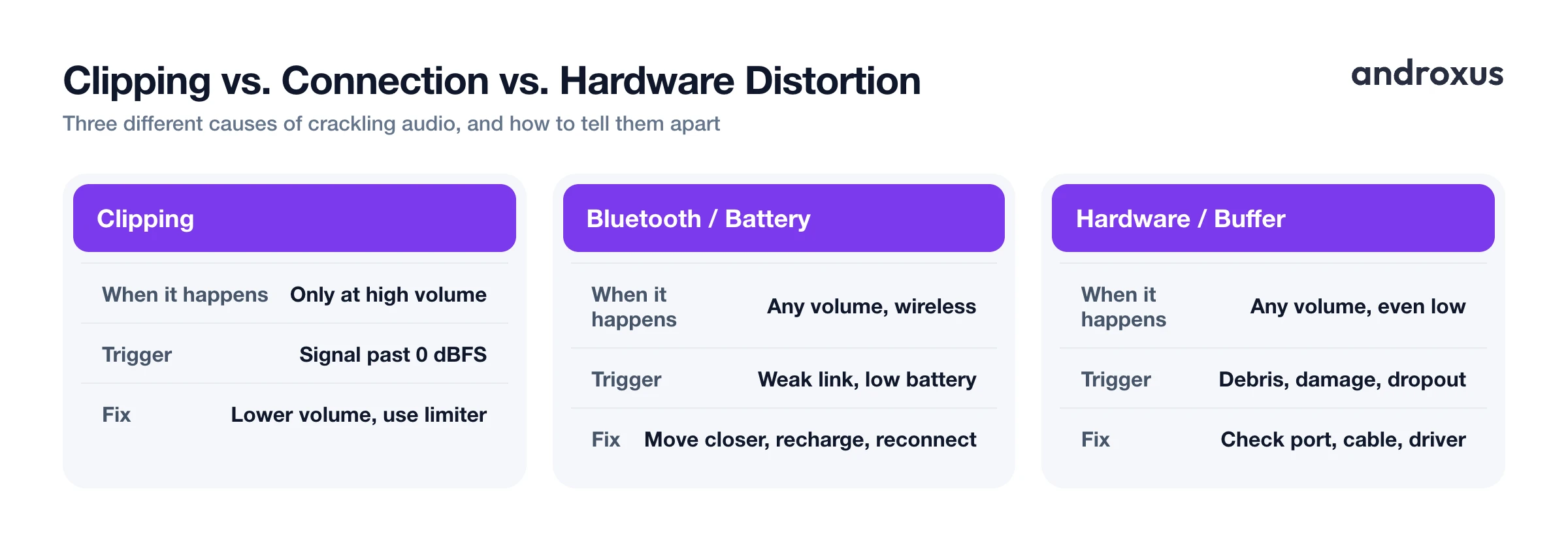
Not all crackling is clipping, and treating every case as a volume problem can send you chasing the wrong fix. A few common culprits behave very differently:
- Weak Bluetooth connection. Being more than roughly 10 meters from the source, having obstructions in the way, or a congested wireless environment can cause stutter and crackle at any volume, moderate or otherwise.
- Low accessory battery. A speaker or headphone amplifier running on a low or degraded battery may not be able to deliver clean power even at low volume, which produces distortion that has nothing to do with how loud you have it set.
- Physical debris or damage. Dust or lint in a charging or headphone port, a damaged driver, or a loose connection can all produce crackling unrelated to volume level entirely.
- Buffer underruns. A brief gap in the audio pipeline, where the stream of data running to the output momentarily runs dry, causes clicks or dropouts that can sound similar to distortion but come from a different root cause than clipping.
The practical tell is simple: if distortion only appears as you raise volume and disappears when you lower it, that points to clipping. If it happens regardless of volume level, look at the connection, the accessory's battery, or the hardware itself instead.
| Symptom | Likely cause | What to try |
|---|---|---|
| Crackles only at high volume | Clipping, digital or hardware ceiling | Lower volume, enable a limiter |
| Crackles at any volume over Bluetooth | Weak connection or low accessory battery | Move closer, recharge, reconnect |
| Crackles at low volume too, wired | Port, cable, or driver issue | Check the port, try another cable or headphones |
| Distortion only on bass-heavy tracks | Peaks clipping on transients | Reduce boost or bass level, use a limiter |
| Clicking or dropout, not a buzz | Buffer underrun or software glitch | Close background apps, restart the audio app |
How a limiter prevents clipping
A limiter is a dynamics tool with an effectively infinite compression ratio. Once a signal crosses a set threshold, the limiter holds the output at or just under a ceiling instead of letting it spike any further.
That is different from clipping in an important way. Clipping abruptly and permanently chops the top off a waveform. A limiter's gain reduction is applied smoothly, and it is not destructive to the underlying signal the way clipping is.
Limiters typically work with three settings: a threshold, which is where limiting starts; a ceiling, the maximum output level allowed; and fast attack and release times, so the limiter can react to loud transients within milliseconds. In a mobile EQ or volume-boosting app, an anti-distortion limiter watches the boosted output in real time and reins in peaks before they hit the hardware's ceiling. The result is that loud parts stay controlled while quieter parts still benefit from the boost.
It is worth being precise about what a limiter does not do. A limiter manages how loud the output gets, it does not create loudness or detail that was not already present in the original signal, and it cannot exceed what a device's speaker or amplifier is physically capable of reproducing. Flow Equalizer includes an anti-distortion limiter as part of its Volume Booster toggle for exactly this reason: it lets you push output higher while managing the risk of clipping, within what the hardware can actually handle.
How to fix distorted or crackling audio on Android
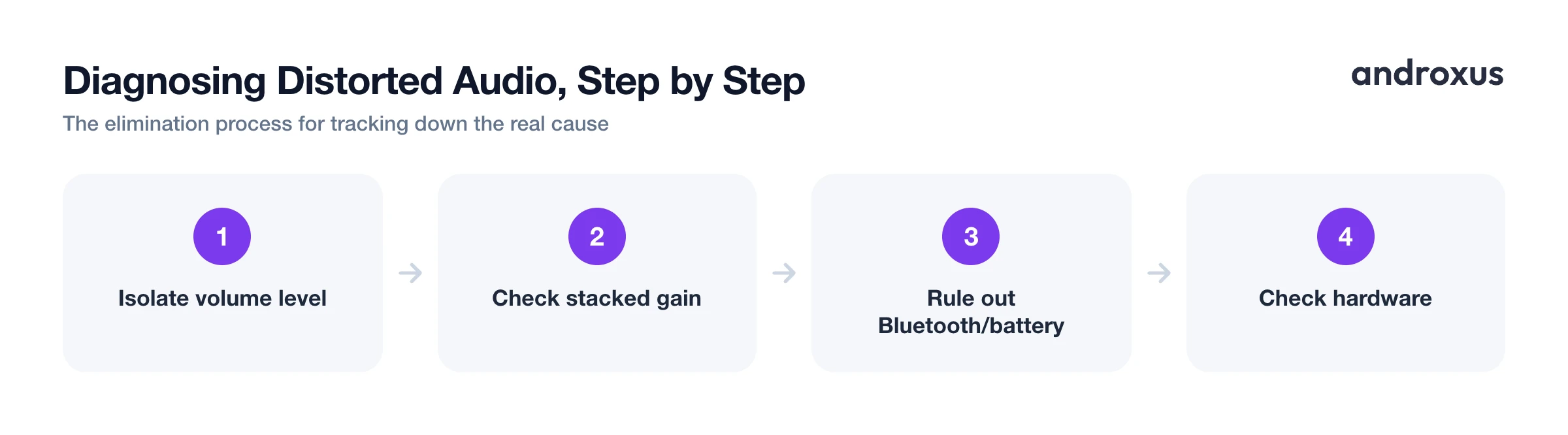
- Isolate the volume level. Lower the phone's media volume a few steps at a time and replay the same audio to see if the crackling clears. If it does, the previous level was pushing the signal or speaker past its clean limit, which is clipping.
- Check for stacked gain. If you use a volume booster or EQ app on top of the system volume, test with both reduced together. Two moderate boosts stacked on each other can clip even when neither looks extreme by itself.
- Rule out Bluetooth and battery issues. If the distortion happens over Bluetooth, move closer to the speaker or headphones, remove obstructions, reconnect the pairing, and check the accessory's battery level, since weak connections and low battery both cause crackling independent of volume.
- Check hardware if it happens at low volume too. If crackling shows up even at low volume, inspect the headphone or charging port for debris, try a different cable or headphones, and consider that the driver itself may be damaged.
- Use a limiter when you need extra loudness. If you regularly need more volume than the phone provides cleanly, turn on the anti-distortion limiter in an EQ or volume booster app rather than pushing the raw system slider past the point where it distorts. The limiter caps loud peaks so the boosted audio stays controlled.
- Keep listening levels in a safe range. Once the distortion is fixed, avoid defaulting to maximum volume. Aim to stay well under levels associated with hearing risk, around 85 dB for extended periods, and use any built-in loud-volume alerts your phone provides as a check, not just a nuisance to dismiss.
Safe listening levels while you adjust volume
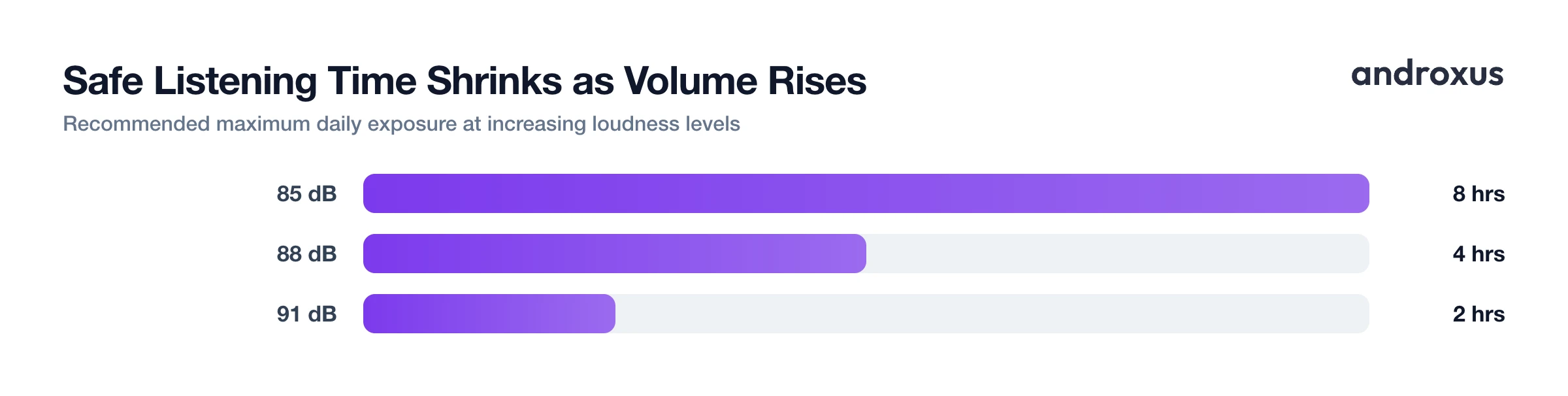
Fixing distortion often means you end up listening at a higher, cleaner volume than before, which makes it worth pairing the fix with some awareness of safe listening levels. Sustained exposure at or above 85 dB for more than 8 hours a day is associated with hearing damage risk. The louder the level, the shorter the safe exposure window: roughly 8 hours at 85 dB, 4 hours at 88 dB, and 2 hours at 91 dB, so the safe window shrinks quickly as volume climbs.
The World Health Organization's safe listening guidance suggests adults keep weekly headphone exposure to around 80 dB or below for up to 40 hours a week, and advises that children avoid sustained exposure over 75 dB. Android 14 also added a headphone loud-volume alert that analyzes listening loudness over a rolling 7-day window and can prompt, or automatically lower, volume when sustained high-volume listening is detected, an addition partly driven by EU personal audio exposure regulations.
A practical habit worth adopting: use a boost or EQ to make quiet audio clearer rather than to push already-loud audio even louder, and treat the loudest usable setting as an occasional tool rather than a default.
Key takeaways
- Distortion when boosting volume is usually clipping, the digital or hardware ceiling being exceeded, and it typically shows up first on loud or bass-heavy passages.
- Crackling that happens at any volume, especially over Bluetooth or at low volume too, usually points to a connection, battery, or hardware issue rather than clipping.
- A limiter reins in peaks before they clip, letting you use more available headroom safely, but it cannot exceed what the hardware can physically reproduce.
- Diagnosing the issue is mostly a process of elimination: isolate volume level, check for stacked gains, rule out Bluetooth and battery, then check the hardware itself.
- Once distortion is fixed, keep an eye on safe listening levels, since a cleaner signal at high volume is still high volume.
Frequently asked questions
Why does my audio distort only when I turn the volume all the way up?
That pattern is the signature of clipping: the signal or the speaker hardware has a maximum level it can reproduce cleanly, and pushing past it flattens the loudest peaks, which is heard as crackling or buzzing. Lowering the volume a few steps below that point usually clears it.
What is the difference between clipping and distortion?
Clipping is a specific cause of distortion: it happens when a signal is pushed past 0 dBFS (digital) or past an amplifier's power limit (analog), squaring off the waveform's peaks. Distortion is the broader symptom, other causes include weak Bluetooth connections, low accessory battery, or damaged hardware.
Can a limiter make my phone louder without distortion?
A limiter controls peaks so they do not clip, which lets you use more of the available headroom before distortion sets in, but it cannot make output louder than the speaker or amplifier hardware is physically capable of. It manages loudness safely, it does not add loudness the hardware cannot produce.
Why does my Bluetooth speaker crackle even at a moderate volume?
This is usually a connection or power issue rather than clipping: a weak Bluetooth link, distance beyond about 10 meters, obstructions, or a low speaker battery can all cause crackling independent of volume level. Reconnecting, moving closer, or recharging the speaker often resolves it.
Is boosting volume on my phone safe for my hearing?
It can be, in moderation. Guidance from hearing-health sources puts the risk threshold around 85 dB for more than 8 hours a day, and the World Health Organization's safe listening guidance suggests keeping headphone use around 80 dB or below for up to 40 hours a week. Android 14 also added a loud-volume alert that tracks listening levels over time.
Does an equalizer app actually fix distortion, or just mask it?
A well-implemented EQ or volume booster with an anti-distortion limiter reduces the chance of clipping by capping peaks before they overload the output, which is a real fix for that specific cause. It cannot fix distortion caused by a bad Bluetooth connection, low battery, or damaged hardware, since those are unrelated to the audio signal itself.
