How to Enable a Screen Filter Overlay on Android
Some phones simply won't get dark enough at night. You turn the brightness slider all the way down and the screen still feels like a flashlight in a dark room. That's a hardware limit, and a screen filter overlay is the software workaround that gets around it.
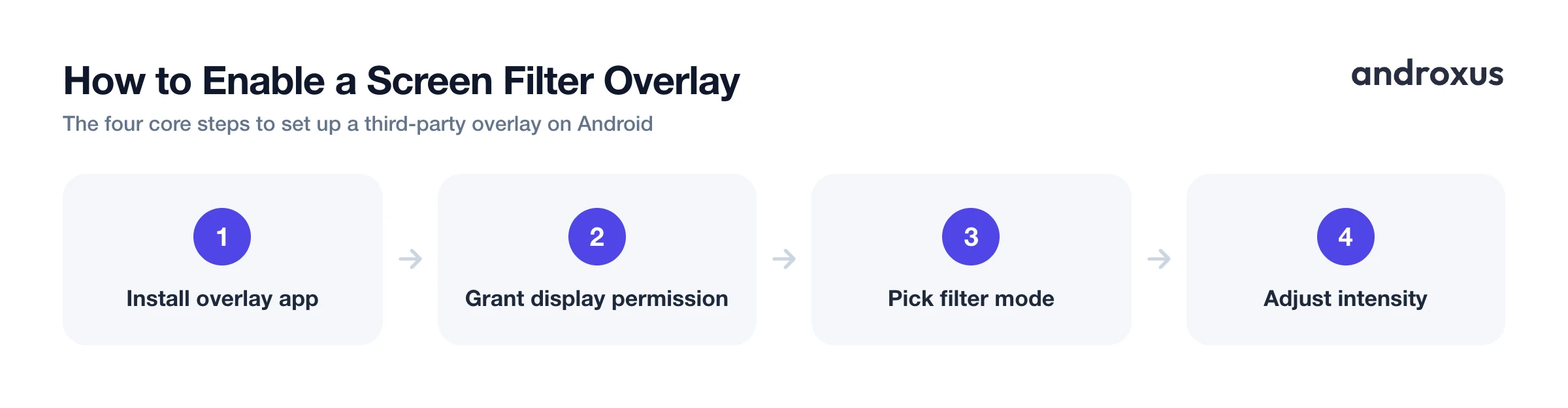
Quick answer: To enable a screen filter overlay on Android, install an overlay app such as Night Screen from the Play Store, grant it the "Display over other apps" permission under Settings > Apps > Special app access, then pick a mode (dim, blue-light filter, or custom tint) and adjust the intensity. The overlay draws a semi-transparent layer on top of the screen, it does not change the phone's actual hardware brightness, so disabling it instantly restores the normal display.
What you'll learn
- What a screen filter overlay actually does and how it's different from the brightness slider
- Why someone would want one, beyond just "the screen is too bright"
- The built-in Android tools worth trying before you install anything
- The exact steps to enable a third-party overlay, including the permission it requires
- What the research honestly says about blue light filters and sleep
What a Screen Filter Overlay Actually Is
An overlay is a window drawn on top of every other app on your phone, using a capability Android calls SYSTEM_ALERT_WINDOW. To you, it shows up as a permission named "Display over other apps" or "Draw over other apps." Once granted, the app can paint a semi-transparent tinted or dark layer over the entire display, sitting above whatever else is on screen: your home screen, your browser, your camera app.
The key thing to understand is that this changes what you perceive, not the physical light coming out of the screen. The backlight itself keeps outputting the same amount of light. The overlay just sits between that light and your eyes, making everything look darker or warmer.
That's a different mechanism from Android's built-in Extra Dim feature (available on Android 12 and later), which instead remaps the red, green, and blue values of each pixel before the screen renders them. Both approaches leave the hardware brightness untouched, they just get there differently: one by altering pixel data, the other by layering a filter on top.
Apps like Screen Filter, Lux Lite, Twilight, CF.lumen, and Night Screen all use some version of this overlay approach to push the display darker or warmer than the hardware slider alone allows.
Why Someone Would Want One
The most common reason is simple: many phones have a hardware minimum brightness that's still too bright for a dark bedroom or a movie theater. An overlay can push the effective brightness lower than that floor, which the slider alone can't do.
A warm-toned or blue-light-reduced overlay is also popular for evening reading comfort, though as covered below, the sleep benefit is modest and not something to count on. Others use a custom color tint for light sensitivity, migraines, or general eye strain, independent of any sleep goal. And an auto-schedule, turning the filter on at sunset and off in the morning, means you're not manually toggling it every single night.
Android's Built-In Options Before You Install Anything
Before reaching for a third-party app, it's worth knowing what's already on your phone.
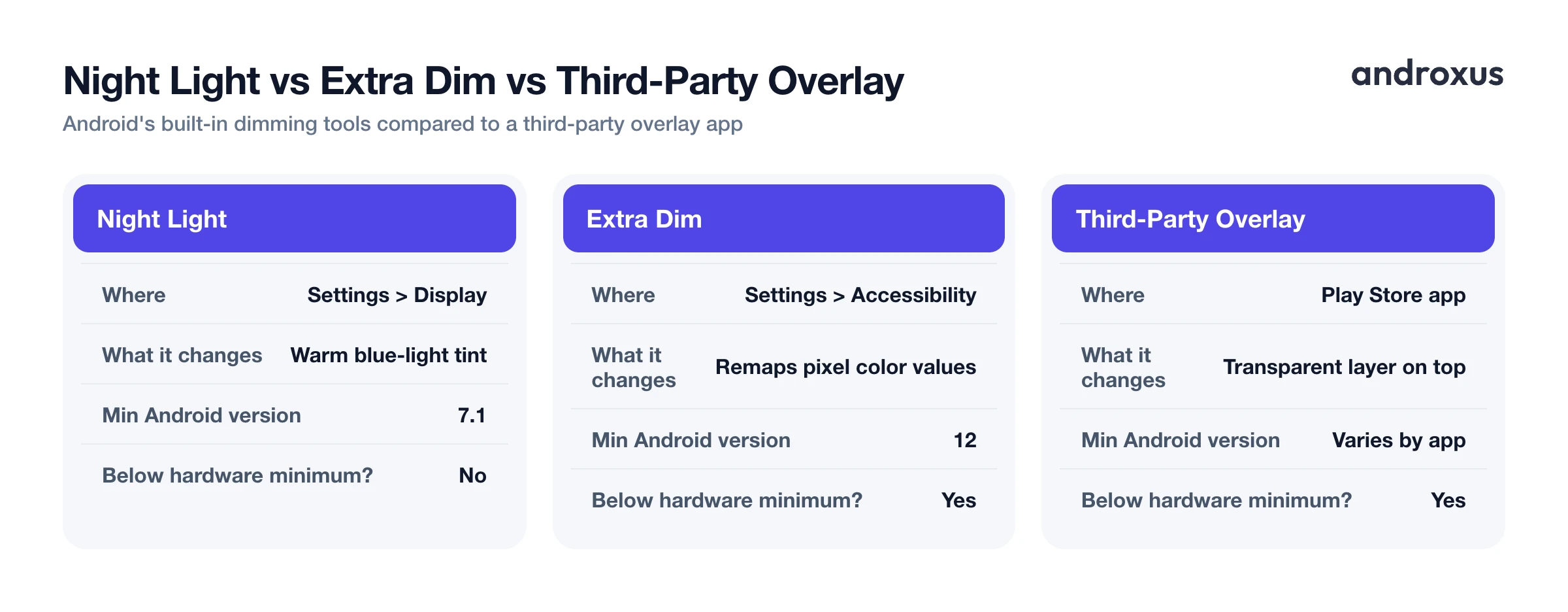
| Tool | Where to find it | What it changes | Minimum Android version | Goes below hardware minimum brightness? |
|---|---|---|---|---|
| Night Light | Settings > Display > Night Light | Adds a blue-light-reducing warm tint, with an intensity slider and schedule | Android 7.1 (called "Eye Comfort Shield" on Samsung, "Reading Mode" on Xiaomi) | No |
| Extra Dim | Settings > Accessibility > Extra Dim | Remaps pixel color values before rendering to dim below the normal floor | Android 12 | Yes |
| Dark theme | Settings > Display > Dark theme | Switches app UI to a dark color scheme, reduces overall luminance on OLED panels | Android 10 | No (it's a color scheme, not a dimmer) |
| Third-party overlay app | Play Store, then Settings > Apps > Special app access | Draws a tinted or dark transparent layer over the whole display | Varies by app | Yes |
Night Light and Extra Dim are both worth trying first since they need no extra permissions. On newer Pixel phones (the Pixel 10 series, for instance), Extra Dim's behavior was folded directly into the main brightness slider rather than staying a separate toggle, so check your slider's lower range before assuming you need Extra Dim as a separate setting. If either one gets you dark enough, you may not need a third-party overlay at all.
What the Research Actually Says About Blue Light Filters and Sleep
It's worth being straightforward about this instead of overselling it. The evidence on blue-light filtering and sleep is mixed. Reviews of randomized controlled trials have found that roughly half report a measurable sleep benefit and half find no significant difference.
Where a benefit does show up, it tends to be modest: one 2020 meta-analysis found small improvements in total sleep time and sleep efficiency, with a larger effect on how people rated their own sleep quality than on what sleep-tracking sensors actually measured. That gap matters. People often feel like they slept better after using a filter, more consistently than actigraphy data confirms it.
The honest takeaway is that a blue-light filter is a reasonable, low-effort evening habit, not a proven fix for sleep problems. It's one small piece alongside things like consistent sleep timing and reduced screen time before bed, not a substitute for them.
How to Enable a Third-Party Screen Filter Overlay
If the built-in tools aren't dark enough, or you want a custom color and an automatic schedule, here's how to set up a dedicated overlay app.
- Install a screen filter overlay app. Get a reputable app from the Google Play Store. Night Screen, for example, is built specifically for dimming below minimum brightness and applying color filters, offering a dim-light mode, a blue-light or reading filter, a custom RGB tint, and an auto-schedule.
- Grant the "Display over other apps" permission. Open the app and follow its setup prompt, which usually links you straight to the right settings screen, or go manually to Settings > Apps > [app name] > Display over other apps. On some phones this lives under Settings > Apps > Special app access > Display over other apps. Android doesn't turn this on by default for apps built against modern API levels, so this step is required.
- Pick a filter mode. Choose a plain dark overlay if the screen is simply too bright, a blue-light or reading tint for a warmer look in the evening, or a custom RGB filter if you want to set your own color and opacity.
- Adjust intensity to a comfortable level. Start moderate and increase gradually. Pushed too far, an overlay can make text and icons genuinely hard to read.
- Set an automatic schedule, if the app offers one. A sunset-to-sunrise or custom schedule means the filter ramps on and off by itself instead of needing a manual toggle every night.
- Check readability and revisit settings. Open a few apps you use often, like your browser, messaging app, or camera, to confirm colors and text still look usable. Dial the filter back if anything looks washed out or too dark.
Permissions, Safety, and Troubleshooting
Because an overlay sits above every other app, it can technically intercept taps, a risk sometimes called tapjacking. That's exactly why Android treats the "Display over other apps" permission as sensitive rather than granting it silently. You'll also notice that Android blocks certain sensitive permission dialogs while any overlay is actively drawn on screen, showing a "Screen overlay detected" message. If that happens, temporarily disabling the overlay app resolves it so you can approve the other permission.
Only grant this permission to overlay apps you trust and downloaded from the Play Store, since it has historically been abused by malware that uses overlays to disguise fake login screens. And it's worth repeating plainly: an overlay filter changes the visible tint or darkness on top of the display, it does not alter the phone's actual display hardware or backlight brightness. Turn the overlay off and the screen looks exactly as it did before, instantly.
Key Takeaways
- A screen filter overlay draws a semi-transparent layer on top of the display to make it look darker or warmer, it does not lower the actual hardware backlight below its minimum.
- It needs the "Display over other apps" permission, granted manually under Settings > Apps > Special app access, since Android doesn't turn this on by default.
- Try Android's built-in Night Light and Extra Dim first; a third-party overlay is most useful when you need a custom tint, a schedule, or brightness lower than Extra Dim provides.
- Blue-light filtering's sleep benefit is real in some studies but modest and inconsistent, treat it as a helpful habit, not a guaranteed fix.
- Because overlays sit above every app, only install ones from trusted sources, and expect Android to briefly warn you if it detects an overlay during a sensitive permission prompt.
Frequently asked questions
What's the difference between a screen filter overlay and just lowering the brightness slider?
The brightness slider controls the actual hardware backlight, which on most phones has a minimum it can't go below. A screen filter overlay is a semi-transparent layer drawn on top of everything else on screen, so it can make the display look darker or tinted even after the backlight has hit its floor. It changes what you perceive, not the physical light output.
What permission does a screen filter overlay app need?
It needs the "Display over other apps" permission (also called SYSTEM_ALERT_WINDOW), found under Settings > Apps > Special app access. Android doesn't grant this automatically for apps targeting modern API levels, you have to flip it on manually the first time you set up the overlay.
Does a blue light filter actually help me sleep better?
The evidence is mixed and modest, not a guarantee. Some meta-analyses report small improvements in self-reported sleep quality and total sleep time, while other reviews found roughly half of trials showed a benefit and half showed none. Reading in a warm-toned, dim light is a reasonable habit, but treat it as one factor among several, not a fix on its own.
Is Extra Dim the same thing as a screen filter overlay app?
They aim at the same problem, an over-bright minimum brightness, but work differently. Extra Dim (Settings > Accessibility > Extra Dim, built into Android 12 and later) remaps pixel color values before rendering. A third-party overlay app draws an actual transparent layer on top of the display. Both leave the hardware backlight untouched.
Can a screen overlay interfere with tapping other apps or buttons?
It can, which is why Android treats the permission cautiously. An overlay sits above everything else, so a badly behaved one could intercept taps, sometimes called tapjacking. Android blocks certain sensitive permission dialogs while an overlay is active on screen and shows a "screen overlay detected" warning until you temporarily disable the overlay.
Will running a screen filter overlay drain my battery faster?
The overlay layer itself is a lightweight rendering pass and isn't a significant battery draw. Your main battery cost is still how long the screen stays on and its brightness level, not the tint sitting on top of it.
