How Do You Automate Taps and Swipes on Android?
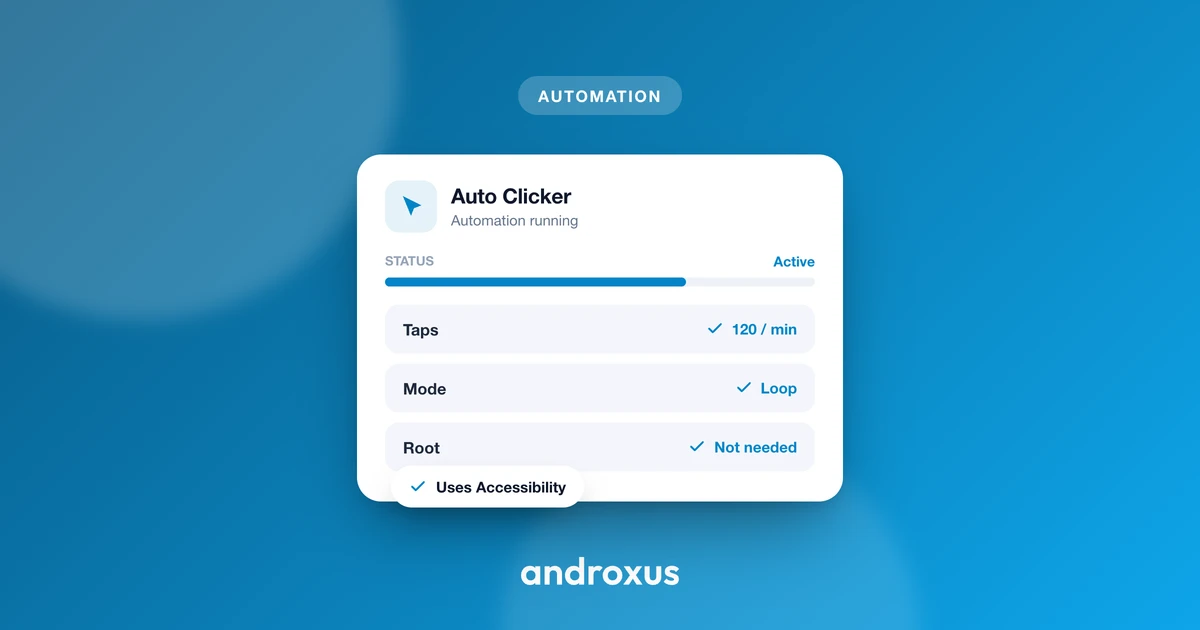
Tapping the same button fifty times in a row, or swiping through the same screen over and over, is exactly the kind of task a phone should be able to do for you. On Android, you don't need a rooted device or a computer connected by USB to make that happen: a small category of apps can automate taps and swipes directly on the phone.
Quick answer: You can automate taps and swipes on Android using an auto-tapper app that relies on the built-in Accessibility Service, no root required. You place tap points or swipe paths on a floating overlay, set the interval and hold duration for each action, and let the app replay them. The same service also lets you record a live sequence and export it as a script to reuse later.
What you'll learn
- How auto-tapper apps simulate taps and swipes without root access
- Which two permissions are required, and how to turn them on correctly
- How to build a tap-and-swipe sequence, including multi-touch and multi-swipe
- How to save a sequence so you don't have to rebuild it every time
- What responsible, terms-of-service-friendly use looks like
How Android auto-tappers work without root
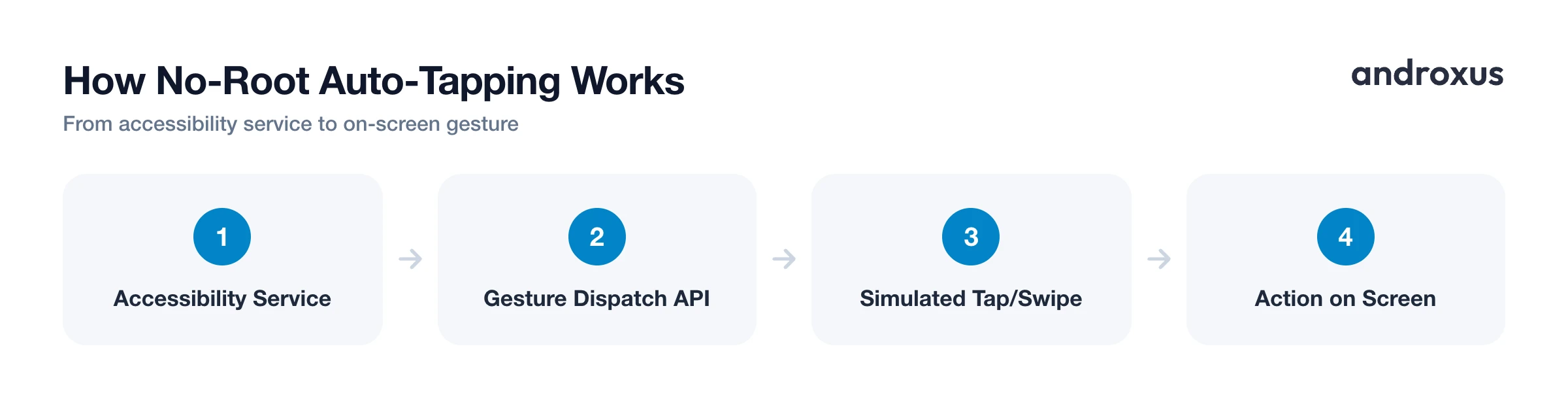
Auto-tapper apps use Android's built-in AccessibilityService API to simulate taps and swipes, so no root access or system modification is needed. This is the same framework that powers screen readers and other accessibility tools, just applied to generating touch input instead of reading it.
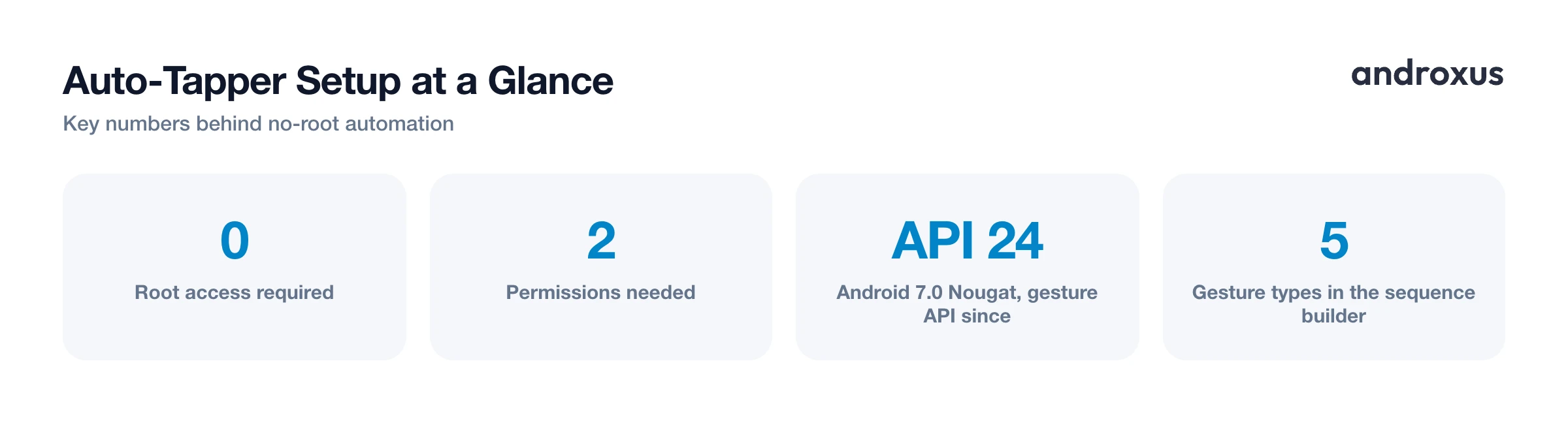
The specific mechanism is gesture dispatch, formally the GestureDescription and dispatchGesture APIs, which have been part of the Accessibility Service framework since Android 7.0 Nougat (API level 24). These APIs support chaining multiple strokes together into one gesture, which is what makes multi-touch taps and multi-step swipes possible in the first place.
Two permissions are typically required for this to work:
- Accessibility Service access, so the app can dispatch touch gestures to the screen.
- Display over other apps (also called SYSTEM_ALERT_WINDOW), so a floating control panel can stay visible over whatever app is currently running.
It's worth being clear-eyed about what Accessibility Service access means. It's a broad permission by design, since it lets an app interact with the screen. That's exactly why it matters that a well-built auto-tapper only simulates the taps and swipes you configure yourself and doesn't collect personal data in the process.
Turning on the permissions correctly
Getting both permissions enabled, and keeping them enabled, is usually the only real hurdle.
Accessibility Service is turned on at Settings > Accessibility > Downloaded apps (sometimes labeled Installed services), where you select the app and flip its toggle on. The floating overlay permission lives in a different place: Settings > Apps > Special app access > Display over other apps, where you enable it for the same app.
The step people miss most often is battery management. Manufacturer-specific battery managers, Samsung's Adaptive Battery and Background Usage Limits being a common example, can silently stop background services even when Accessibility Service still shows as "on" in settings. Setting the app's battery usage to Unrestricted or Not Optimized prevents this from happening mid-sequence.
It's also worth knowing that Google's Play Store policies on Accessibility API use have tightened over time, requiring apps to be transparent about why they use the API for automation rather than purely assistive purposes. That's a good reason to only grant this permission to apps whose behavior you actually understand, and to remember you can revoke it any time from that same Settings > Accessibility screen.
Building a tap-and-swipe sequence
Once permissions are in place, building a sequence usually comes down to one of two setup methods: manually placing tap points and swipe paths on a floating overlay using your own coordinates, or recording a live pass of touches that the app then replays back.
Per-action settings generally include:
- The interval between actions
- The hold duration, for tap-and-hold steps
- How many times, or for how long, the sequence loops
Two capabilities are worth understanding separately, since they solve different problems:
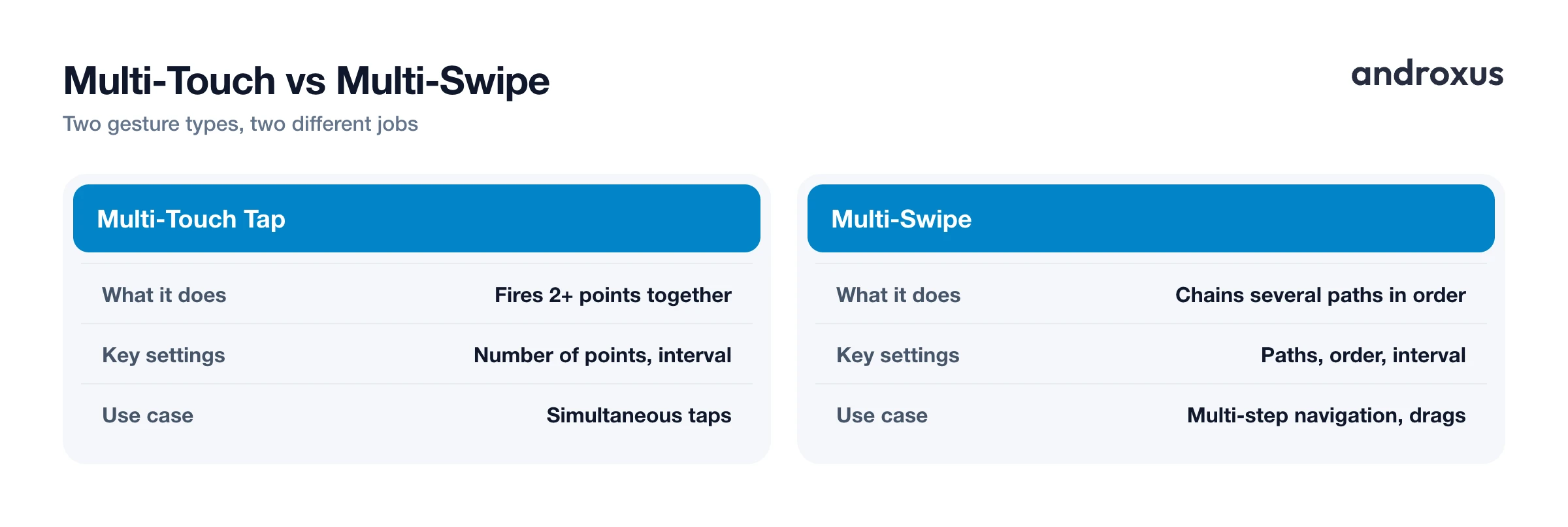
- Multi-touch means two or more points are triggered together in the same gesture, useful when a task genuinely needs simultaneous taps rather than a sequence of single ones.
- Multi-swipe means chaining several swipe paths in order, useful for drag-style actions or multi-step navigation that a single swipe can't cover on its own.
Tap and swipe gesture types at a glance
| Gesture type | What it does | Key settings to configure | Typical use case |
|---|---|---|---|
| Single tap | Triggers one action at one point | Interval between taps | Repetitive form entry or button presses |
| Tap-and-hold | Presses and holds a point for a set duration | Hold duration | Idle or clicker game collection actions |
| Multi-touch tap | Fires two or more points together | Number of points, interval | Actions that require simultaneous taps |
| Single swipe | Runs one directional path | Start point, end point, speed | Simple drag or scroll actions |
| Multi-swipe | Chains several swipe paths in sequence | Number of paths, order, interval | Multi-step navigation or complex drag actions |
Saving and reusing your automation
Exporting a sequence as a script file lets you back it up, reuse it later without rebuilding it, or move it to a new phone entirely. This matters most for genuinely repetitive tasks done on a recurring basis, where rebuilding the same tap points every single time would defeat the entire point of automating them.
Auto Clicker is one example of an app built around this workflow. You place tap points and swipe paths on its floating panel, set intervals and hold duration per action, and export or import the resulting script. It runs entirely on Android's Accessibility Service with no root required, and it simulates only the taps and swipes you configure, nothing more.
Using tap-and-swipe automation responsibly
Because Accessibility Service can interact with whatever is on screen, only grant it to apps whose purpose you actually understand, and remember it can be turned off any time from Settings > Accessibility.
A well-behaved auto-tapper only performs the specific taps, holds, and swipes you set up. It does not read screen content to make its own decisions or act autonomously beyond the sequence you configured.
It's also important to check the rules of whatever you're automating. Many games and online services, especially competitive or multiplayer ones, explicitly prohibit macros, bots, or automation tools in their terms of service, and breaking those terms can lead to warnings or account bans. Offline, idle, or single-player use cases are far less commonly restricted, but the specific terms are what actually matter, not general assumptions.
Good general-purpose uses include repetitive personal tasks such as form-filling drills, testing your own app's UI flow, or idle and clicker games without competitive rankings, always checked against that specific app or game's own rules first.
How to automate taps and swipes on Android
- Install a no-root auto-tapper. Choose an app that automates taps and swipes through Android's Accessibility Service rather than requiring root access.
- Enable Accessibility Service. Go to Settings, then Accessibility, then Downloaded apps (or Installed services), select the app, and toggle it on.
- Grant the floating overlay permission. Go to Settings, then Apps, then Special app access, then Display over other apps, and enable it for the app so its control panel can stay on top.
- Exempt the app from battery optimization. Set the app's battery usage to Unrestricted or Not Optimized so background automation isn't silently stopped mid-task.
- Place your tap points and swipe paths. Open the target app, then use the floating panel to add tap points and swipe paths at the exact on-screen locations you need.
- Set timing for each action. Configure the interval between actions, the hold duration for any tap-and-hold steps, and how many times the sequence should repeat.
- Save the sequence. Export the finished sequence as a script so you can reuse it later or move it to another device without rebuilding it.
- Test before you rely on it. Run a short test to confirm every point lands where you intended, then let the full sequence run, keeping the target app or game's rules on automation in mind.
Key takeaways
- Automating taps and swipes on Android doesn't require root; it runs through the built-in Accessibility Service, active since Android 7.0.
- Two permissions make it work: Accessibility Service access and Display over other apps for the floating panel.
- Battery optimization is the most common reason automation quietly stops, so set the app to Unrestricted or Not Optimized.
- Multi-touch handles simultaneous taps while multi-swipe chains sequential paths, and both are configured with interval, hold duration, and repeat settings.
- Always check the terms of service of the app or game you're automating, since rules on macros and automation vary widely.
Frequently asked questions
Do I need to root my Android phone to automate taps and swipes?
No. Auto-tapper apps use Android's built-in Accessibility Service to simulate taps and swipes, which works on stock, unrooted phones.
What permissions does a tap and swipe automation app need?
Two: Accessibility Service access, so it can dispatch touch gestures, and Display over other apps, so its floating control panel can stay visible over whatever app you're using.
Can these apps tap two spots on the screen at the same time?
Yes, this is called multi-touch. Android's gesture APIs support chaining multiple touch points into a single dispatched gesture, which is how simultaneous taps are simulated.
Why does my automation stop running after a few minutes?
Battery optimization or a manufacturer's background-activity manager can quietly restrict the app. Setting the app's battery usage to Unrestricted or Not Optimized in system settings usually fixes it.
Will using an auto-tapper get my account banned in a game?
It depends entirely on that game or service's terms of service. Competitive and online multiplayer titles frequently prohibit macros or automation, while offline and idle games are commonly more permissive. Check the specific rules before using automation there.
Can I save a tap sequence and reuse it later?
Yes, apps that support script export and import let you save a configured sequence and load it again later, or move it to another device, without rebuilding the tap points from scratch.
