Auto Clicker for Games: How to Auto-Tap Idle Games
Idle and clicker games are built on the same repeated motion: tap the button, watch a number go up, tap again. After the hundredth tap your thumb gets tired long before the game does, which is exactly why so many players look into using an app like Auto Clicker instead of tapping by hand for hours.
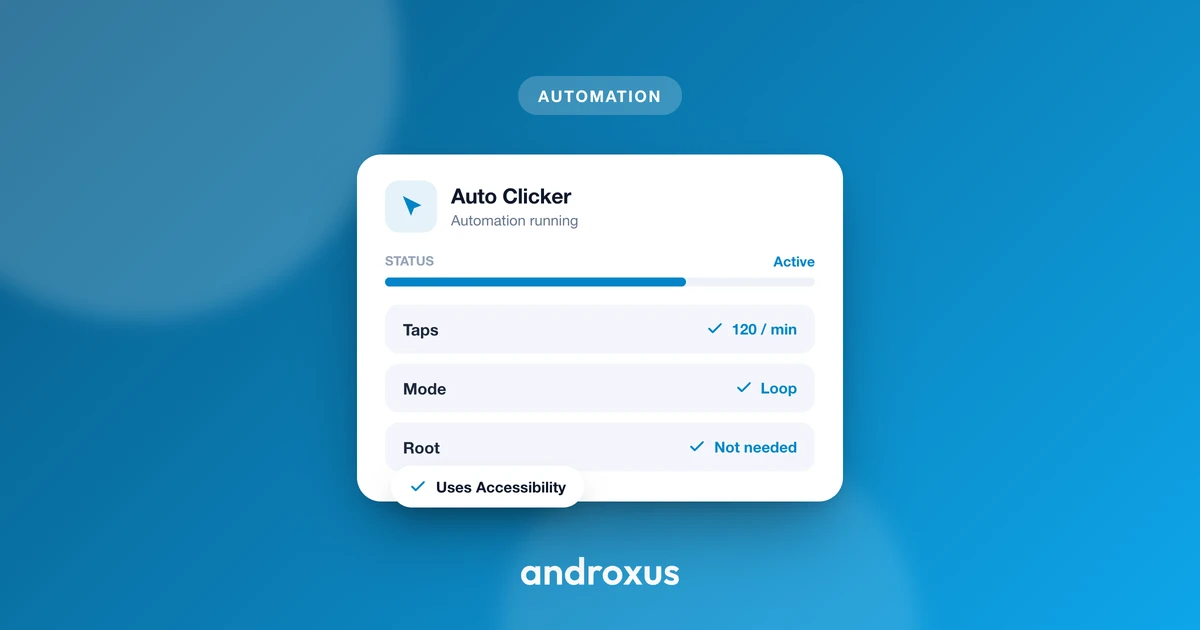
Quick answer: An auto clicker for games (also called an auto tapper) repeats a tap, swipe, or tap-and-hold at a screen location and interval you choose, standing in for the manual taps a player would otherwise do. On Android it typically works through the built-in Accessibility Service, so no root access is needed. It only replays the input you configure, and it works best in solo or idle-friendly progression loops, not in competitive or PvP games whose rules ban automation.
What you'll learn
- What an auto tapper actually does under the hood and why it doesn't need root
- Which types of games are a good fit for auto-tapping, and which usually aren't
- The Android permissions an auto tapper will ask for and why each one matters
- How to configure tap points, intervals, multi-touch, and swipes for a real game
- A step-by-step setup you can follow the first time you try it
What an Auto Tapper Actually Does in a Clicker or Idle Game
An auto tapper is a small utility that repeats a tap, swipe, or tap-and-hold at a location and interval you set, standing in for the finger taps a player would otherwise do by hand. On Android, these apps typically use the built-in Accessibility Service to simulate the touch events. That's the same system API Android exposes for accessibility tools, and it's what lets an app "tap" the screen without root access.
No root is required for this category of app. Root access modifies core system files and is a separate, riskier practice that most modern auto tappers deliberately avoid. The tool only replays taps and swipes the user configures: it does not read game logic, does not see hidden information, and does not give the player any advantage a fast human tapper couldn't also get. It just automates the repetition.
Idle and clicker games are built around exactly this kind of repetitive tapping, whether that's tapping a cookie, a farm plot, or a resource icon over and over. That's why the genre is the most common legitimate use case for this style of tool.
Where Auto-Tapping Fits and Where It Doesn't
Clicker and idle games, meaning tap-to-earn resource games and incremental games, are the use case this genre of tool fits best, because the core loop is literally repeated tapping with no real-time opponent. Many idle and incremental games explicitly tolerate or even design around automation of the core tap loop, since "idle" mechanics already assume the game plays itself to a degree.
Competitive, PvP, or matchmaking-based mobile games commonly prohibit bots, macros, and automation tools in their Terms of Service. Violations can lead to warnings, temporary suspensions, or permanent bans, depending on the game's enforcement policy. Some idle games also explicitly ban macros and automation in their terms even though the genre seems tailor-made for it, so "it's an idle game" is not a blanket green light. The specific game's rules govern.
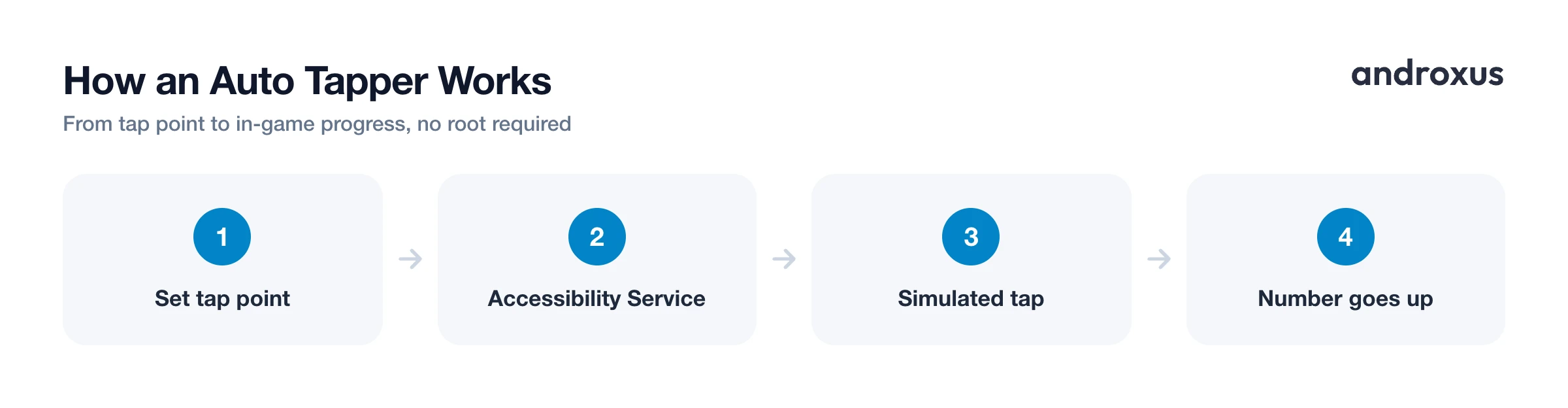
| Game type | Typical fit for auto-tapping | Why |
|---|---|---|
| Single-player idle/incremental | Usually good fit | Core loop is solo repeated tapping; many titles assume automation |
| Offline resource collectors | Usually good fit | No real-time opponent, progress is largely time-based |
| PvP or ranked mobile games | Poor fit, high risk | ToS commonly bans bots and macros; enforcement is active |
| Guild or leaderboard competitions | Poor fit, moderate risk | Automation can be treated as unfair even in otherwise casual games |
| Real-money or gacha progression | Check ToS carefully | Automation rules vary widely by publisher |
The safest rule of thumb is to use auto-tapping for solo, offline, or explicitly automation-friendly progression loops, and to check the specific game's Terms of Service or community rules before using it in anything with rankings, PvP, or real-money elements.
Setting Up an Auto Tapper on Android: Permissions You'll Be Asked For
Every legitimate auto tapper asks for a small, predictable set of permissions, all requested through normal system settings screens rather than any hidden or special access.
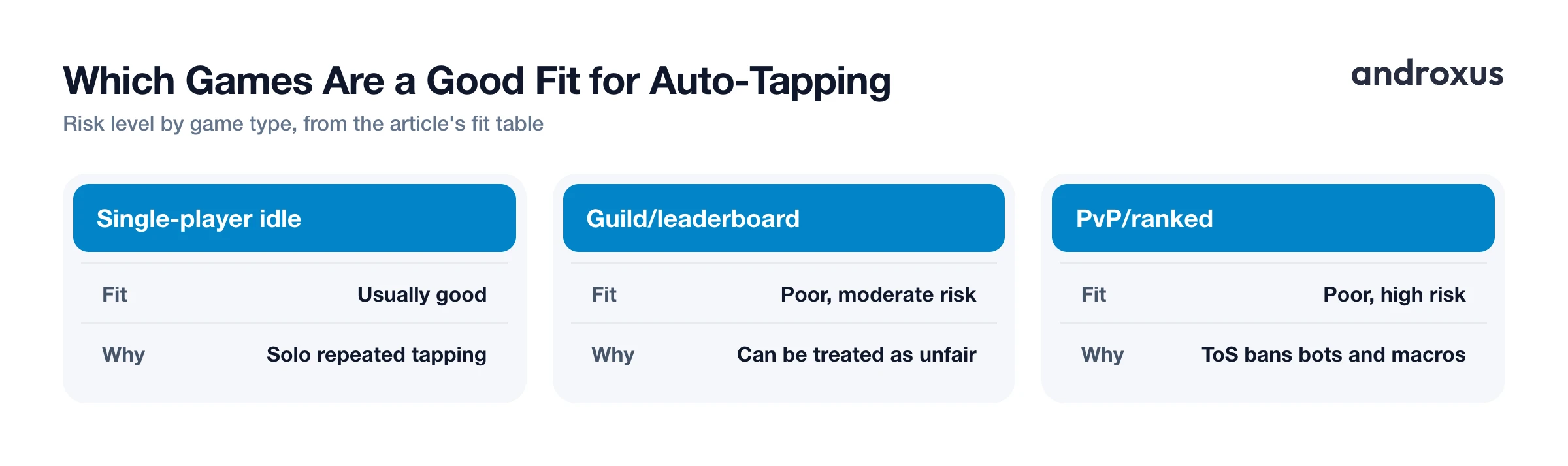
- Accessibility Service permission: the app prompts you to enable it under Settings > Accessibility (the exact path varies by manufacturer) so it can dispatch the tap and swipe events you configure.
- Display over other apps (overlay) permission: also called "Appear on top" on Samsung devices or "Display pop-up windows while running in background" on MIUI. It lets the app show its floating control panel on top of the game so you can start, pause, and adjust taps without leaving the app.
- Battery optimization exemption: Android's per-app battery optimization can pause background processes to save power. Setting the auto tapper to "Don't optimize" (Settings > Battery > Battery optimization) helps prevent the system from interrupting a running session, especially on longer idle-game sessions.
These are standard requests for any floating-panel, automation-style utility on Android. If an app asks for anything beyond this, such as contacts, SMS, or storage access it doesn't need, that's worth questioning.
Configuring Taps and Swipes for Idle/Clicker Gameplay
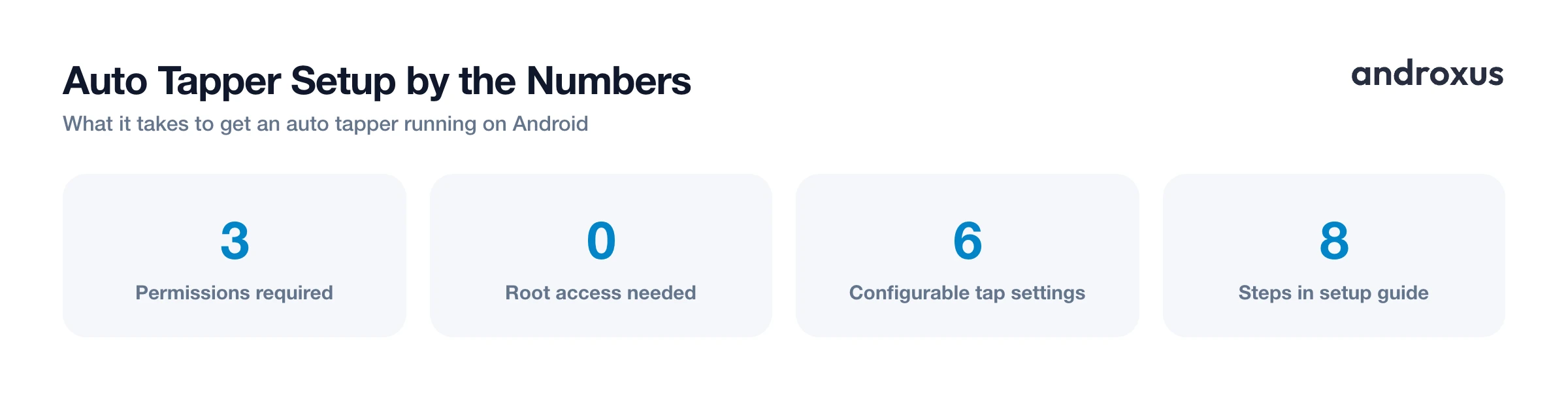
Once permissions are granted, the actual configuration is where an auto clicker for games earns its keep. A few settings matter most:
- Tap points: place one or more fixed points on screen, such as the main tap button, a resource icon, or a collect button, for the app to hit repeatedly.
- Interval and speed: set the delay between taps. Idle games with a single tap button often just need a steady interval matching the button's cooldown or animation time.
- Multi-touch and multi-swipe: some games need more than a single tap point active at once, like collecting from multiple resource nodes, or a swipe gesture such as dragging a card or scrolling a menu. Multi-touch and multi-swipe support lets one script cover both patterns.
- Tap-and-hold: useful for games where holding down a button, such as charging an attack or holding a lever, matters more than a quick tap.
- Scripts: saved sequences of tap points, intervals, and swipes can be exported and reimported, which is handy for reusing a working setup across sessions or sharing a configuration for a specific game screen.
- Floating control panel: lets you start, pause, or stop the session without switching out of the game, which matters for idle games you're actively watching.
Flow Auto Clicker follows this same pattern: single and multi-touch, single and multi-swipe, tap-and-hold, and script import and export, all run from a floating panel with no root required.
Using Auto-Tapping Responsibly
Because the tool only simulates the taps you set up, it does not collect or transmit personal data. Everything it does is local, on-device automation of input you configured. That said, some games and platforms explicitly prohibit automation, bots, or macros in their Terms of Service, so using an auto tapper in a title with that rule can put an account at risk of warnings, restrictions, or bans.
Best practice is to read the specific game's Terms of Service or rules page before enabling automation, especially for anything with leaderboards, PvP, guild competitions, or real-money purchases tied to progress. A reasonable general policy is to use auto-tapping for repetitive, single-player, or explicitly tolerant idle loops, and to turn it off for anything competitive or rule-restricted. The tool itself doesn't know or enforce a game's rules: that check is on the player.
How to Set Up an Auto Tapper for an Idle or Clicker Game
- Check the game's rules first. Before setting anything up, glance at the game's Terms of Service or community rules for mentions of bots, macros, or automation, especially if the game has PvP, leaderboards, or guild competition.
- Install and grant Accessibility Service permission. Open the auto tapper app and follow its prompt to enable its Accessibility Service under Android Settings > Accessibility, which lets the app dispatch the taps and swipes you configure.
- Allow the overlay permission. Grant the overlay permission, named Display over other apps, Appear on top on Samsung, or similar depending on manufacturer, so the app's floating control panel can appear on top of your game.
- Exempt the app from battery optimization. In Settings > Battery > Battery optimization, set the auto tapper to Don't optimize so Android doesn't pause it in the background during a longer idle session.
- Place your tap points or swipe path. Open the floating panel over your game and mark the tap point or points, swipe path, or tap-and-hold target on the exact button or icon you want automated.
- Set the interval and repeat behavior. Choose the delay between taps to match the game's button cooldown or animation, and set how many repeats or how long the session should run.
- Save the script if you'll reuse it. If the app supports script export and import, save the configuration so you can reload the same tap setup next time instead of re-placing points from scratch.
- Start, monitor, and stop from the floating panel. Use the floating control panel to start the session, keep an eye on the game, and pause or stop it whenever you need to step back in manually.
Key takeaways
- An auto clicker for games repeats only the taps and swipes you configure, using Android's Accessibility Service, with no root required.
- Solo, offline, or explicitly automation-friendly idle and clicker loops are the best fit; PvP, ranked, and leaderboard-driven games carry the most risk.
- Expect three permission requests: Accessibility Service, overlay (Display over other apps), and a battery optimization exemption.
- Multi-touch, multi-swipe, tap-and-hold, and saved scripts cover most real game layouts beyond a single tap button.
- Always check a specific game's Terms of Service before automating, since rules vary even within the idle game genre.
Frequently asked questions
Is it safe to use an auto clicker on Android without rooting my phone?
Yes. Most auto clicker and auto tapper apps use Android's built-in Accessibility Service to simulate taps and swipes, which does not require root access. Rooting is a separate, more invasive modification that reputable auto-tap apps avoid.
Will using an auto tapper get my game account banned?
It depends on the specific game. Many idle and clicker games tolerate automating the core tap loop, but plenty of games, including some idle titles, explicitly prohibit bots, macros, or automation in their Terms of Service. Always check the game's own rules; competitive or PvP-driven games are the highest risk.
Does an auto tapper give me an unfair advantage over other players?
It only repeats the taps and swipes you configure at the location and speed you choose. It doesn't see hidden game data or make decisions for you, it just automates repetition a human could otherwise do by hand, which is why many single-player idle loops treat it as a convenience rather than a cheat.
What Android permissions does an auto tapper app need?
Typically three: Accessibility Service to dispatch the tap and swipe events, Display over other apps (overlay) permission for the floating control panel, and an exemption from battery optimization so the system doesn't pause the session in the background.
Can an auto tapper handle games that need more than one tap at a time?
Apps that support multi-touch and multi-swipe can place several tap points or swipe paths in one session, which covers games where you need to hit more than one button or drag a gesture, not just tap a single spot repeatedly.
Do auto clicker apps collect my personal data?
A properly scoped auto tapper only simulates the on-screen taps and swipes you set up locally on your device; it has no reason to collect personal data, since its entire job is replaying input you configured.
