How to Add a Charging Animation to Android
Some phones show a full-screen charging animation the moment you plug in, and others just flash a tiny percentage in the status bar. If yours is the second kind, or if you simply want a different look than the one your phone shipped with, adding a charging animation is a permissions problem as much as a style choice.
Quick answer: You can add a charging animation to Android either by relying on a built-in option, which is on by default on Samsung's One UI or which you can switch on under Always-on display and Lock screen on Xiaomi's MIUI and HyperOS, or by installing a third-party charging animation app if your phone has neither, as is the case with stock Android on Pixel. Third-party apps work by listening for Android's power-connected broadcast and drawing a full-screen overlay, which means they need the Display over other apps permission at minimum, and often a battery optimization exemption to keep running reliably. Once set up, you can disable a third-party animation by revoking that overlay permission, and on Xiaomi you can flip the built-in toggle back off, though Samsung currently gives no equivalent switch.
What you'll learn
- Which phones already have a charging animation built in, and where the toggle lives
- How third-party charging animation apps detect a plugged-in charger and draw over the lock screen
- Exactly which permissions these apps request, and what breaks if you deny each one
- How to turn a charging animation off again, temporarily or for good
- What separates a genuinely useful charging animation from one that just looks nice
What's Already Built Into Your Phone
Before installing anything, it is worth checking whether your phone already has a charging animation, because a built-in one needs no extra permissions and keeps working through OS updates without babysitting.
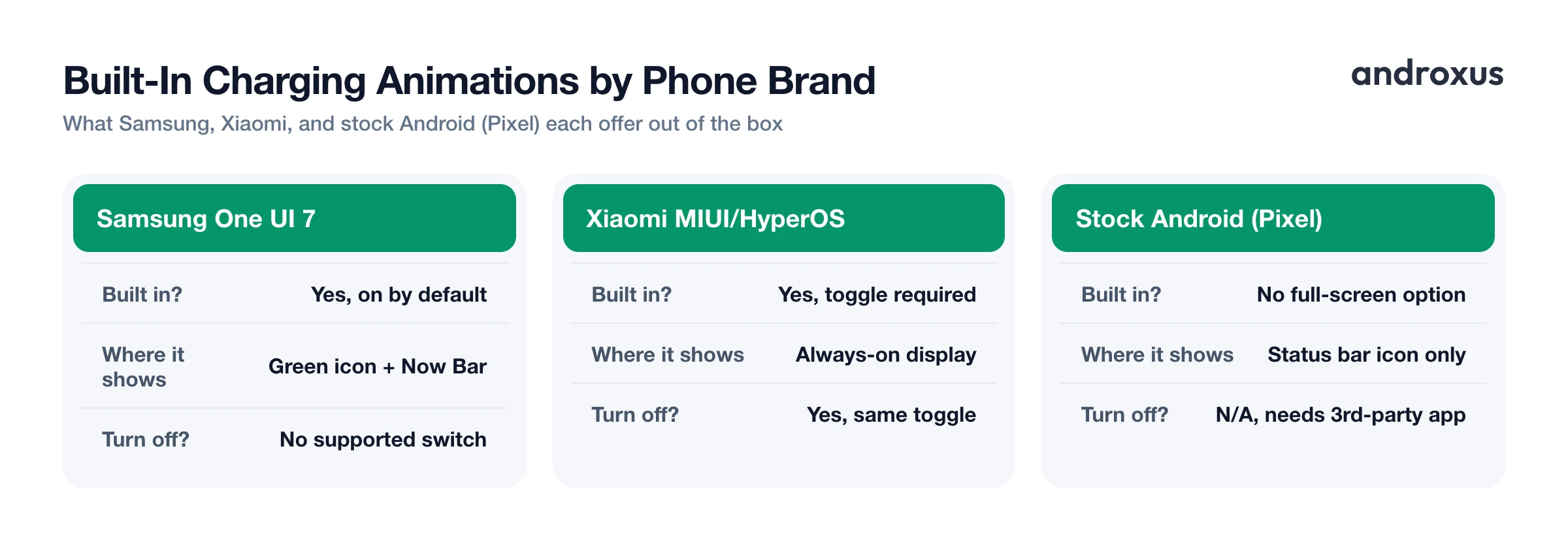
Samsung's One UI 7, which entered beta in December 2024 and reached official rollout in April 2025, redesigned the charging visuals. When the phone is unlocked and you plug in, the battery icon turns green and expands a "Charging" text animation from left to right, then reverts to normal after about 2 seconds. On the lock screen, the same information shows inside the Now Bar, a green progress bar rather than a separate full-screen animation. One UI 7 also widened the charge-limit options in Battery settings to 80, 85, 90, or 95 percent under Battery Protection's Maximum mode, which is a battery-longevity feature, not the animation itself, but it lives in the same settings area.
On Xiaomi phones running MIUI or HyperOS, the toggle lives at Settings, then Always-on display and Lock screen. Once enabled, the animation keeps showing even after the phone is unlocked, except during full-screen scenes like video playback. Xiaomi's built-in Themes app also lets you swap the charging-screen visual, and the boot animation, without root access, so there is real customization room here without a third-party app.
Stock Android on Pixel phones has no dedicated full-screen charging animation at all, only a small charging icon and percentage in the status bar and on the lock screen. That gap is exactly what third-party charging animation apps exist to fill, and it is the case most of this article is written for.
How Charging Animation Apps Actually Work
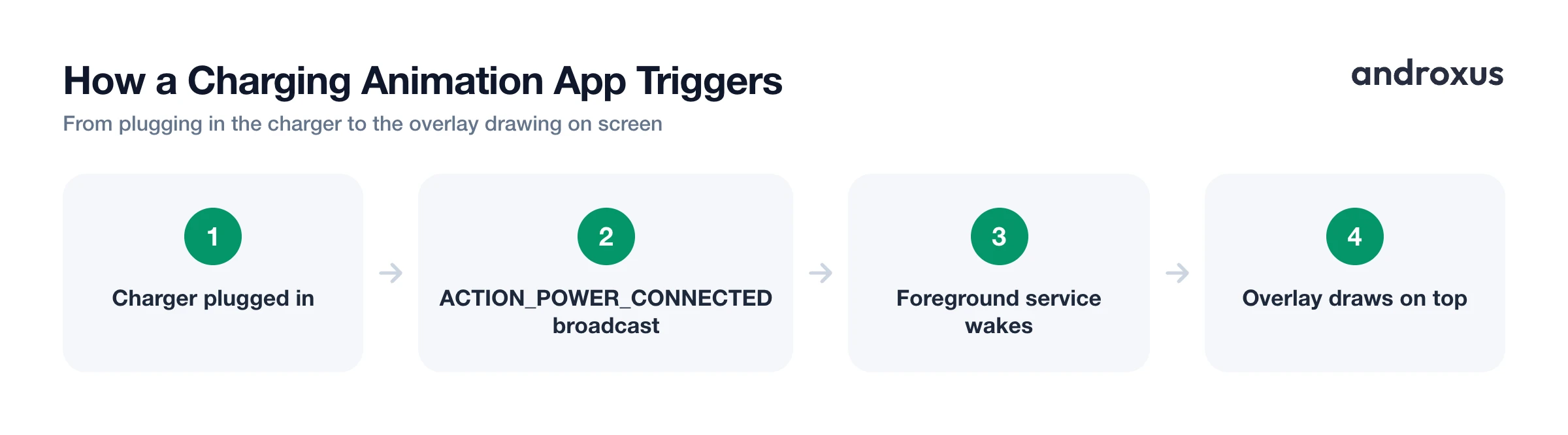
A charging animation app is not constantly checking your battery level in the background. Android's BatteryManager sends a sticky broadcast with the action ACTION_POWER_CONNECTED the instant a charger is plugged in, and ACTION_POWER_DISCONNECTED the instant it is removed. The app registers a BroadcastReceiver for exactly these two events, so it knows precisely when to show and hide its animation without polling the battery state on a timer, which would waste power.
The animation itself is not a normal app screen. It is rendered as a system overlay window, using the WindowManager.LayoutParams.TYPE_APPLICATION_OVERLAY window type, which is what lets it draw on top of every other app, including the lock screen.
Because the receiver has to keep working even while the screen is off or the app is not open, these apps run a foreground service in the background. That is why you will see a persistent, low-priority notification while the service is active, not a sign the app is misbehaving.
The Permissions These Apps Ask For, and Why
Every permission a charging animation app requests maps to a specific piece of that broadcast-and-overlay mechanism. Deny or later revoke one, and a specific, predictable part of the behavior breaks, usually without any error message.
| Permission / setting | When it's required | What it lets the app do | What happens if you deny or later revoke it |
|---|---|---|---|
| Display over other apps (SYSTEM_ALERT_WINDOW) | Special permission on all Android versions since 6.0 (API 23) | Draws the animation as an overlay window on top of every other app and the lock screen | The animation never appears; the app itself still opens normally |
| Notifications (POST_NOTIFICATIONS) | Runtime permission since Android 13 (API 33) | Shows the ongoing notification tied to the foreground service that keeps the overlay alive | Foreground service can still run, but no notification shows in the shade |
| Battery optimization exemption / Unrestricted battery use | Manual toggle, relevant since Doze arrived in Android 6.0 | Keeps the broadcast receiver and foreground service running through Doze and App Standby | OS can pause the service once the screen has been off for a while, so the animation stops triggering |
| Foreground service type declaration | Required in the Play Console for apps targeting Android 14 (API 34) or higher | Lets the OS and Play review classify what the persistent service is doing | Missing declaration can trigger a rejection or crash on newer OS targets |
Display over other apps is the one that matters most, and the one most people notice missing, because without it the app runs fine, opens fine, and just never actually shows anything on the lock screen.
The notification permission is newer and easy to overlook. Since Android 13, apps must separately request runtime permission just to post the ongoing notification tied to a foreground service. If you deny it, the underlying service can keep running, you simply will not see a notification for it.
Battery optimization exemption is where things get inconsistent across manufacturers. On Android 14 and later, the OS no longer guarantees foreground-service notifications stay pinned, users can swipe them away, and some phone makers' own battery managers pause the underlying service once that happens, especially on Xiaomi, Oppo, and Vivo, which layer aggressive background-activity managers on top of stock Doze and App Standby. Google Play policy actually prohibits apps from directly requesting this exemption unless their core function needs it, so the standard route is the system's own ACTION_REQUEST_IGNORE_BATTERY_OPTIMIZATIONS dialog rather than a shortcut straight into device settings.
How to Stop a Charging Animation From Appearing
Turning an animation off does not require uninstalling anything in most cases, and the method depends on whether it is built into your OS or came from a third-party app.
For a built-in animation, control depends on the brand. On Xiaomi's MIUI and HyperOS, flip the same Always-on display and Lock screen toggle back off. Samsung offers no equivalent switch: the One UI 7 and later charging visual runs by default with no documented setting to turn it off, so there is currently no supported way to remove it.
For a third-party app, the fastest method is revoking the overlay permission: go to Settings, then Apps, then the app name, then Display over other apps, and switch it off. This immediately stops the overlay from drawing, with no need to uninstall the app or lose its settings.
Force-stopping the app, or closing it from recent apps while leaving battery optimization set to Unrestricted, also prevents the animation from firing, though this is fragile: reopening the app manually, even briefly, can restart the foreground service and bring the animation right back. If you want it gone for good rather than just paused, fully uninstalling the app removes the receiver, the service, and the overlay permission grant all in one step.
What Makes a Good Charging Animation App
Not every charging animation is worth keeping running in the background, and a few concrete things separate a good one from one that quietly costs you battery or attention.
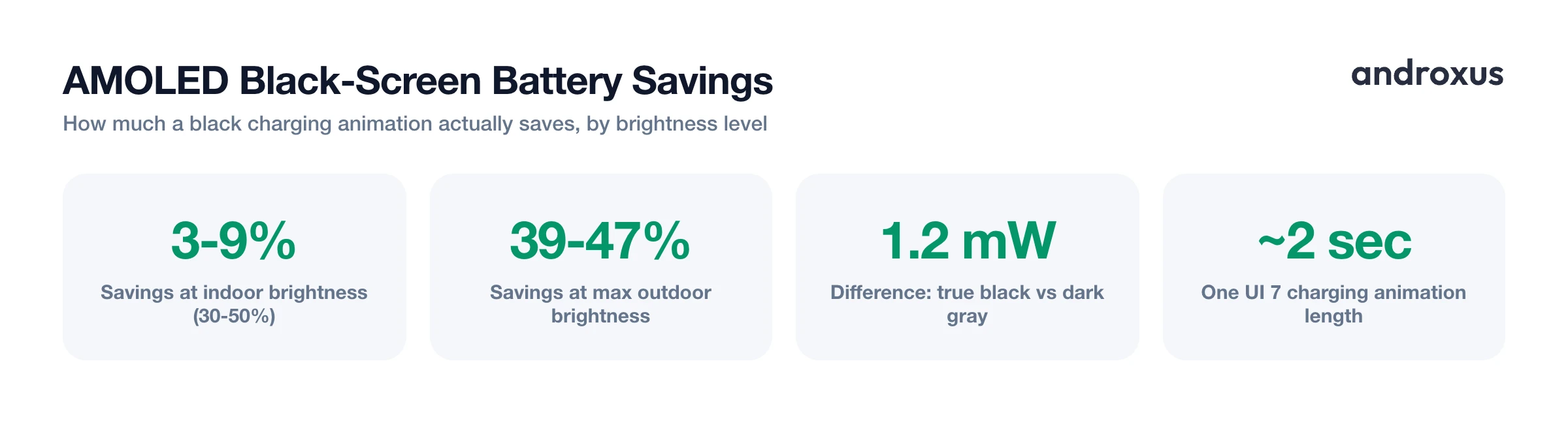
On AMOLED and OLED panels, a pixel showing pure black is switched off entirely, since each subpixel is its own light source with no backlight behind it. Independent brightness testing shows the actual savings from an all-black interface are brightness-dependent: roughly 3 to 9 percent at typical indoor brightness of 30 to 50 percent, rising to as much as 39 to 47 percent at maximum outdoor brightness. The gap between true black and a very dark gray is small, about 1.2 milliwatts in one measured test, so a near-black dark gray will not meaningfully change the result. What matters more is simply avoiding bright colors filling the screen for the whole charging session.
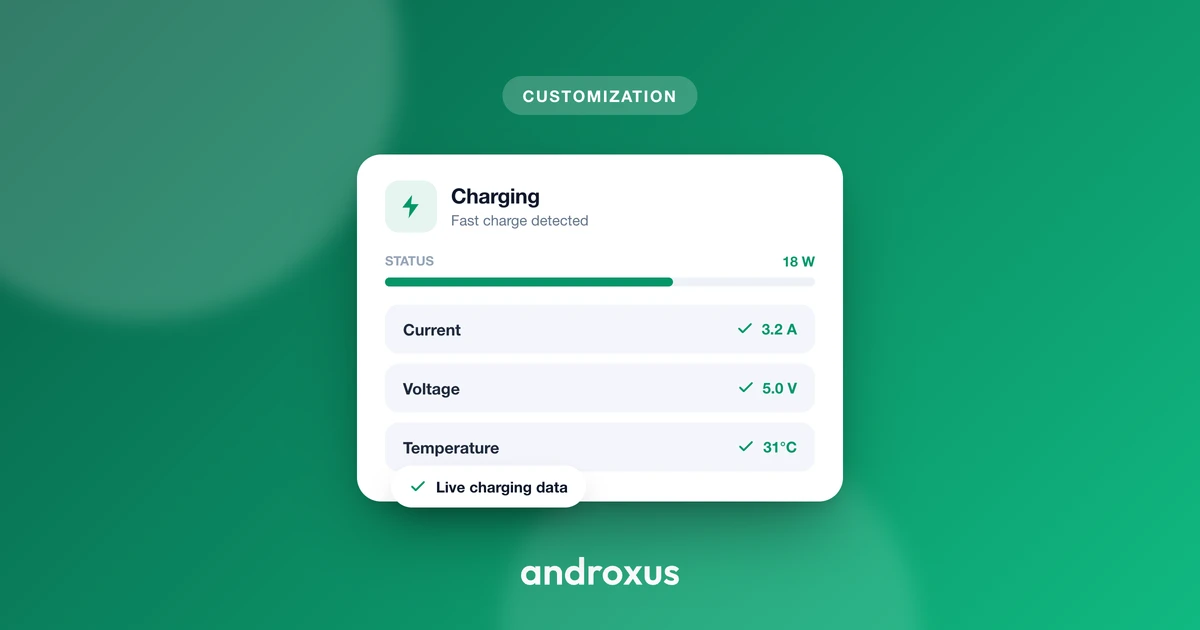
A genuinely useful animation shows real numbers rather than pure decoration: the current charge rate in watts, time remaining to a target percentage, and battery temperature. The whole point of glancing at a charging screen is knowing when it is safe to unplug, and an animation that only shows a spinning graphic without any of that data is answering a question nobody asked.
Because this category of app is full-screen and sits on top of the lock screen by design, it is also a common place for ad-supported apps to slip in ads or upsell screens exactly when the user has no way to back out except unplugging the phone. Check reviews for this pattern specifically before granting the overlay permission, since it is easy to miss in screenshots and hard to undo once you are locked into a full-screen ad every time you charge.
AmpereFlow reads your phone's own charging data, live watts, voltage, and current, corrected for manufacturer-specific reporting quirks, separately from any animation app you install. That makes it a useful cross-check: if a flashy animation claims your phone is pulling 25 watts, comparing that number against what it reports directly from your battery controller tells you whether the animation is showing something real or just a generic placeholder value.
How to Add a Charging Animation to Android
- Check your phone's own settings first. Before installing anything, look for a built-in option: on Samsung One UI, the charging icon and Now Bar animation are on by default; on Xiaomi MIUI or HyperOS, go to Settings, then Always-on display and Lock screen, and enable the charging animation toggle there. If your phone has one, it needs no extra permissions and stays supported through OS updates.
- Install a charging animation app. If your phone has no built-in option, as with stock Android on Pixel, install a charging animation app from the Play Store. Favor one that lists an AMOLED-friendly black theme and real charging stats in its screenshots, not just decorative effects.
- Grant Display over other apps. Open the app once installed; it will typically prompt you to enable Display over other apps, or you can go directly to Settings, then Apps, then the app name, then Display over other apps, and turn it on. This is required for the overlay animation to draw at all.
- Grant notifications and exempt the app from battery optimization. Allow the notification permission prompt, needed on Android 13 and later for the foreground service, then go to Settings, then Apps, then the app name, then Battery, and set it to Unrestricted, or use the app's own prompt if it offers a battery optimization exemption shortcut. This keeps Doze and App Standby from silently pausing the service.
- Customize the animation and test it. Set the animation style, size, and position in the app, choosing a black or near-black background if AMOLED battery use matters to you. Unplug and replug your charger to confirm the animation triggers immediately, and check that it disappears again when the charger is removed.
- Verify the numbers it's showing are accurate. If the animation displays a wattage or charge-time estimate, cross-check it against a dedicated battery meter app that reads the phone's own charging data directly and corrects for manufacturer-specific reporting quirks, to confirm the animation is not just showing a generic placeholder number.
Key takeaways
- Check for a built-in charging animation first: Samsung One UI and Xiaomi's MIUI and HyperOS both have one, and it needs no extra permissions.
- Third-party apps work by listening for Android's power-connected broadcast and drawing a full-screen overlay window on top of the lock screen.
- Display over other apps is the one permission that actually makes the animation appear; notifications and battery optimization exemption keep it reliable over time.
- You can turn a charging animation off at any time by revoking the overlay permission, without uninstalling the app.
- A good charging animation shows real watts, time, and temperature data on an AMOLED-friendly dark background, and does not use the lock screen as an ad slot.
Frequently asked questions
Does a charging animation app make my phone charge faster?
No. A charging animation app only reads and displays data your phone's battery controller already reports, such as percentage and charging status. It has no way to change the actual charge rate, which is set by your charger, cable, and the phone's own charging circuitry.
Why does a charging animation app need the Display over other apps permission?
The animation is technically a system overlay window, drawn using Android's TYPE_APPLICATION_OVERLAY window type so it can appear on top of every other app and the lock screen. That capability is gated behind the SYSTEM_ALERT_WINDOW special permission, which Android has required users to grant manually in Settings since Android 6.0 Marshmallow. Without it, the app opens fine but the overlay simply never draws.
Will exempting the app from battery optimization drain my battery?
The impact is small in practice. The app is not running continuously, it is dormant until Android's BatteryManager fires the ACTION_POWER_CONNECTED or ACTION_POWER_DISCONNECTED broadcast, and it only keeps a lightweight foreground service alive in between. The exemption exists so that background limits like Doze and App Standby do not stop that service from responding to the next plug-in event.
Can I get a charging animation on a stock Android phone like a Pixel?
Pixel's stock Android does not include a dedicated full-screen charging animation, only a small charging icon and percentage in the status bar and lock screen. A third-party charging animation app is the only way to add a full-screen animation on those devices.
Why did my charging animation stop appearing after an Android update?
A few things commonly break it: Android 14 and 15 no longer guarantee that foreground-service notifications stay pinned, so a swiped-away notification can pause the service on some phones; the manufacturer's own background-activity manager, common on Xiaomi, Oppo, and Vivo, may have re-restricted the app; or the overlay or notification permission was revoked, sometimes automatically, if the app has not been opened in a while.
Does an all-black charging animation actually save battery on an AMOLED screen?
Yes, but the effect depends heavily on brightness. Because AMOLED pixels showing pure black are switched off entirely, testing shows savings of roughly 3 to 9 percent at typical indoor brightness and as much as 39 to 47 percent at maximum outdoor brightness. The difference between true black and a very dark gray, however, is negligible, so the exact shade matters far less than avoiding bright colors.
