Do Charging Animation Apps Drain Your Battery?
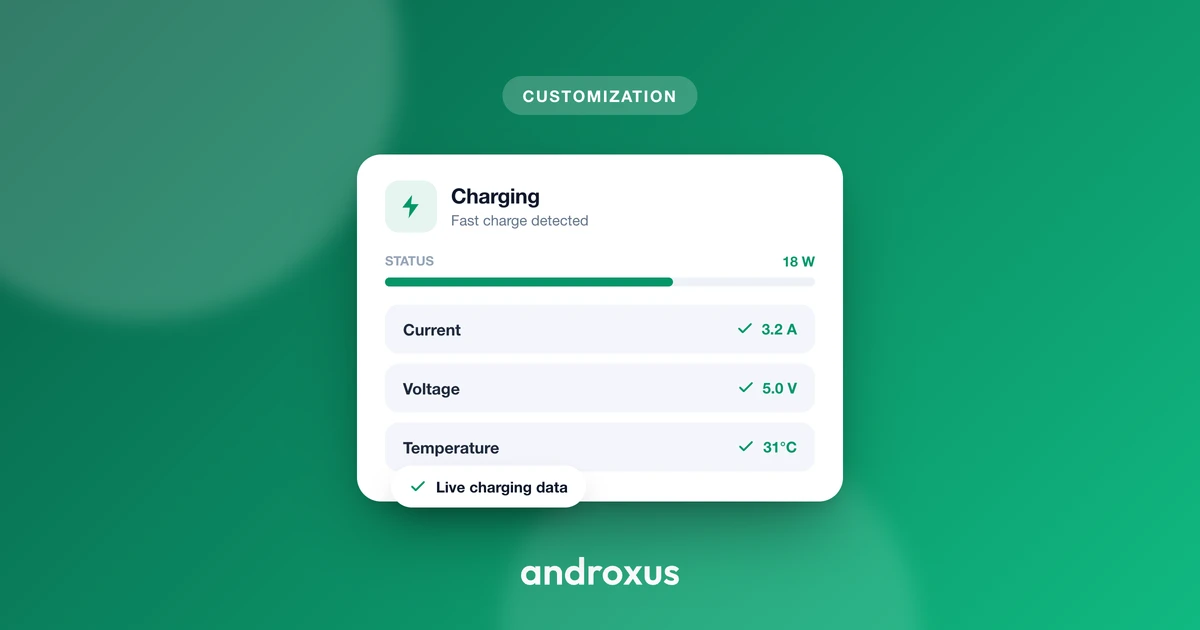
You plug in your phone, a spinning battery icon or a cartoon bolt fills the lock screen, and somewhere in the back of your mind you wonder if that little show is quietly working against the very thing it's celebrating. Charging animation apps are one of the most popular customization downloads on Android, and one of the most misunderstood in terms of what they actually cost.
Quick answer: A charging animation app does not drain your battery in any meaningful way while the phone is plugged in, because the charger, not the battery, is supplying power to both the screen and the app during that time. The real costs are indirect: keeping the screen on for the whole session adds a little extra heat, a bright white-heavy design draws more instantaneous current on an AMOLED screen than a black one, and a poorly built app can hold background permissions that drain battery after you unplug. The animation itself never speeds up or slows down charging in any noticeable way, and the genuine risks come from overlay permissions and ad-heavy apps, not from the animation logic.
What you'll learn
- How a charging animation app actually reads your phone's charge state
- Why the charger, not the battery, pays for the animation while you're plugged in
- Why AMOLED screens make a bright design cost more current than a black one
- How Android's background rules apply to animation apps and what to watch for
- Which permissions are a real red flag versus which are normal for the feature
How Charging Animation Apps Actually Work
A charging animation app is simpler under the hood than its visuals suggest. It detects charge state through Android's public BatteryManager API, listening for the ACTION_BATTERY_CHANGED broadcast and reading fields like EXTRA_STATUS (charging, discharging, full) and EXTRA_PLUGGED (AC, USB, or wireless). When the phone reports a charging state, the app draws its animation on screen, usually a looping graphic layered over or in place of the lock screen.
Some apps go further and display live numbers from the same broadcast: EXTRA_TEMPERATURE, reported in tenths of a degree Celsius, and EXTRA_VOLTAGE, reported in millivolts. These are standard Android SDK fields available to any app with basic permissions, not a special hardware connection. Worth being clear: a charging animation app reads your own phone's reported battery data. It does not pair with, connect to, or control any external battery management system, such as an e-rickshaw, EV, scooter, solar bank, or lead-acid pack. The same is true of a dedicated meter app like AmpereFlow: it reads these same phone-reported values and has no Bluetooth pairing or control link to any external BMS hardware.
The Real Cost: Why The Charger Foots The Bill
The core question people ask is whether the animation eats into the battery's stored charge. It doesn't, for a straightforward reason: while the phone is connected to a charger, the adapter is supplying current to both the battery and the screen simultaneously. The animation and any background service it runs are powered by the wall outlet or power bank for as long as the cable stays connected, not by capacity already stored in the cell.
Where things get slightly more nuanced is charging speed. Lithium-ion phones follow a constant-current, constant-voltage (CC-CV) charging profile. The constant-current phase carries the battery to roughly 70 to 80 percent of capacity at a steady rate. After that, the charger holds voltage around its usual 4.2V ceiling and lets current taper off, often dropping to about 3 percent of the earlier constant-current level as the cell tops out. Anything drawing power during that tapering stage, including a screen-on animation, shares the adapter's remaining output with the battery. That can add a few extra minutes to reach 100 percent, but it has essentially no effect during the fast constant-current phase, and it never makes a phone charge faster than its hardware and charging standard allow.
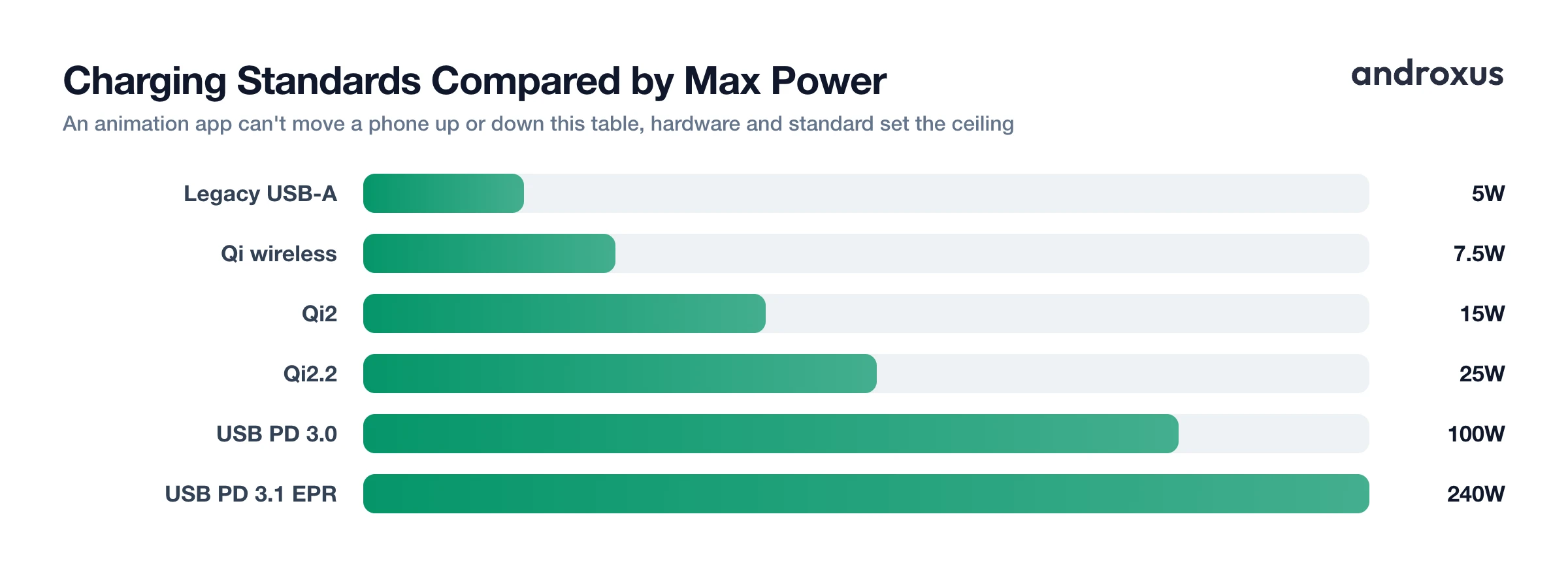
For context on what those charging standards actually deliver, here's how the common ones compare:
| Standard | Version | Max Power | Notes |
|---|---|---|---|
| Legacy USB charging | USB-A, no fast-charge negotiation | 5W (5V/1A) typical | Base rate most older phone chargers deliver |
| USB Power Delivery | PD 3.0 | Up to 100W (20V/5A) | Most common current phone and laptop fast-charging protocol |
| USB Power Delivery | PD 3.1, Extended Power Range | Up to 240W (48V/5A) | Adds 28V, 36V, and 48V fixed voltages for high-power devices |
| Qi wireless | Qi, original phone profile | Up to 7.5W | Long-standing cap for phones before Qi2 |
| Qi2 wireless | Qi2 | Up to 15W | Adds magnetic alignment on top of a PD-based power source |
| Qi2 wireless | Qi2.2 (25W) | Up to 25W | Requires a certified Qi2.2 pad plus a 30W or higher USB-C PD adapter |
A charging animation app cannot move a phone up or down this table. Charging speed is set by the phone's hardware, the standard it negotiates, and the charger and cable in use.
AMOLED Physics: Why The Animation's Color Palette Matters
This is the part most people miss, and it's where a real, measurable difference exists. AMOLED and OLED panels light each pixel individually instead of using a single backlight behind the whole screen. A pure black pixel on these displays can switch off completely and draw close to zero current, while a white pixel draws close to its maximum.
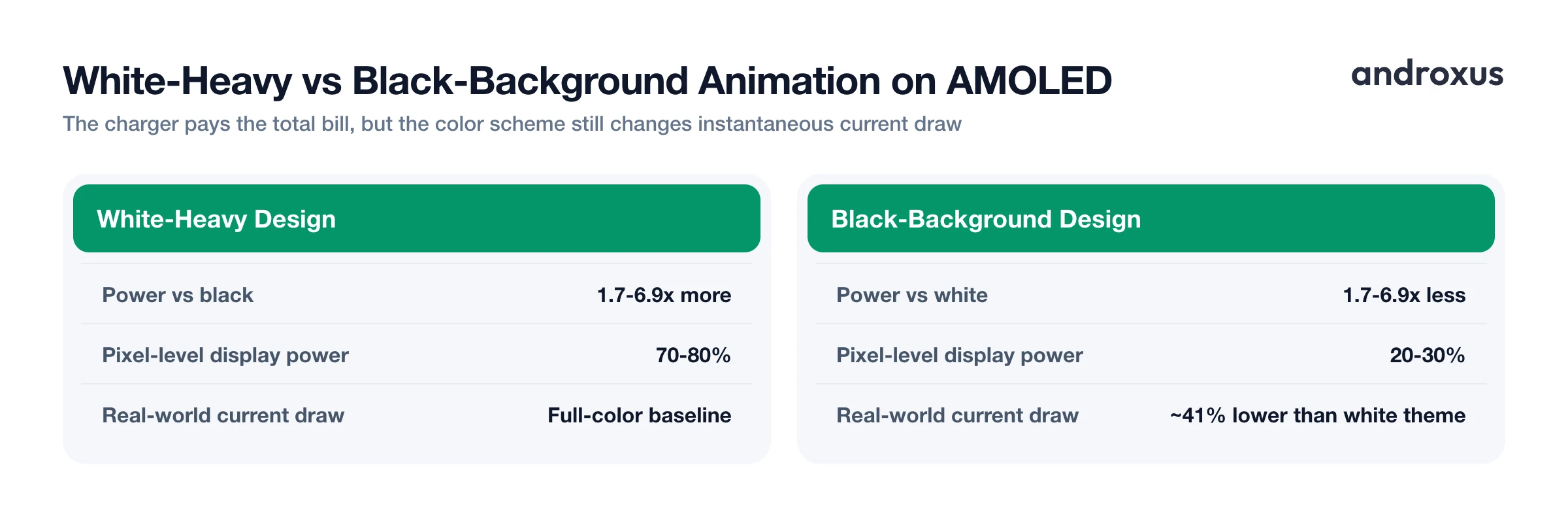
The measured gap between the two is large. Devices with AMOLED screens have been found to consume roughly 1.7 to 6.9 times more power displaying a white background compared to a black one. In one real-world test, switching an app's AMOLED interface from a full-color theme to an all-black theme cut current draw by about 41 percent. At the individual pixel level, a black character shown on a white background draws roughly 70 to 80 percent of total display power, while the same character in white on a black background draws roughly 20 to 30 percent.
The practical takeaway: a bright, white-heavy spinning-battery or lightning-bolt animation draws more instantaneous current on an AMOLED screen than a black-background design running the same duration. The wall outlet still covers the bill while you're plugged in, but that current adds to the phone's heat output, and if you ever preview the same animation while unplugged, it becomes a direct battery cost.
Background Service Overhead And Android's Own Battery Rules
Where a charging animation app can genuinely affect your battery is after you unplug, if it keeps running in the background. Android governs this with a permission called PARTIAL_WAKE_LOCK, which keeps the CPU active while letting the screen and keyboard backlight turn off. It exists for legitimate background tasks that need CPU time without a visible display, but it's also the mechanism behind most background drain complaints.
Since Android 9 (API level 28), background apps cannot hold a PARTIAL_WAKE_LOCK unless they run a foreground service with a persistent, visible notification. That's why some charging animation apps sit behind an ongoing notification even when you're not charging: it's the price of staying resident. Android's Doze mode and App Standby limit this further, suspending network access, ignoring most wake locks, and deferring standard alarms for apps that haven't been exempted. Apps that prompt you to disable battery optimization, using the ACTION_REQUEST_IGNORE_BATTERY_OPTIMIZATIONS flow, sidestep both mechanisms, which is why that particular permission request deserves scrutiny.
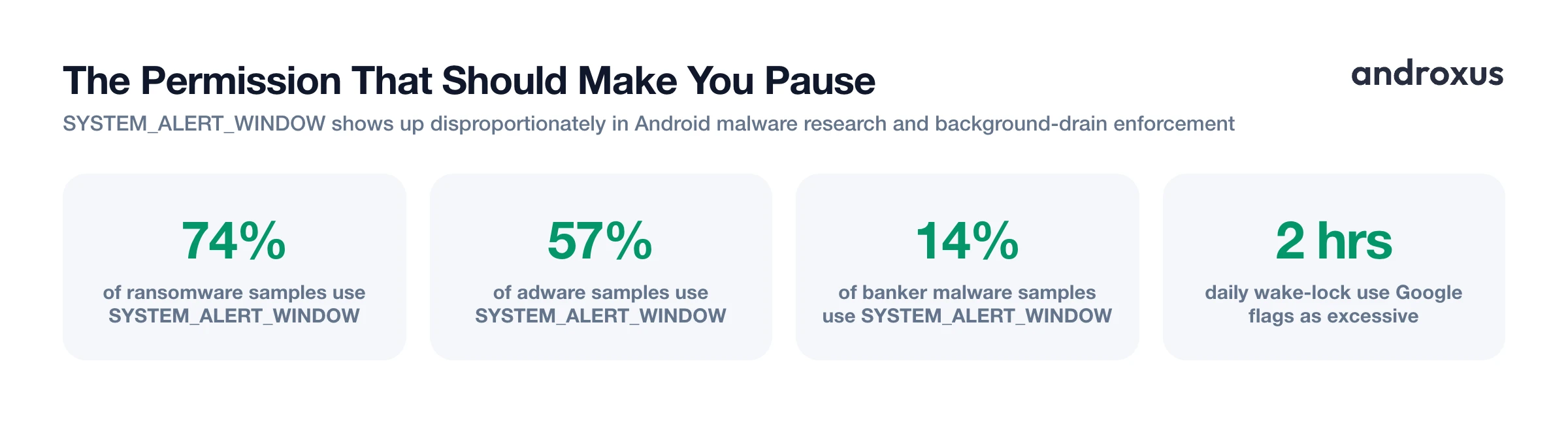
Google's Android vitals system flags a session as excessive once an app holds more than 2 cumulative hours of non-exempt wake locks in a 24-hour period, and enforcement through 2025 and 2026 can de-rank apps that consistently trip that threshold. A charging animation app has no legitimate reason to need 2 hours of wake locks a day if all it does is display something while you're plugged in.
Where The Real Risk Lives: Overlay Permissions And Ad-Heavy Apps
The permission that lets an animation draw over your lock screen or over other apps is SYSTEM_ALERT_WINDOW, commonly labeled "display over other apps." On Android 6.0.1 and later, it's granted automatically at install time for apps that declare it, rather than through a runtime prompt you have to actively approve, which means it's easy to overlook exactly which apps hold it.
That same permission shows up disproportionately in mobile malware research. Guardsquare's threat analysis attributes SYSTEM_ALERT_WINDOW to roughly 74 percent of ransomware samples, 57 percent of adware samples, and 14 percent of banker malware samples that rely on overlay techniques. Android 12 responded to this pattern, adding a HIDE_OVERLAY_WINDOWS permission so sensitive apps can opt out of overlays and making SYSTEM_ALERT_WINDOW itself harder to acquire.
A legitimate lock-screen animation genuinely needs this permission, so its presence alone isn't damning. What's worth declining is the combination: a free, ad-supported app that requests the overlay permission, asks to be excluded from battery optimization, and keeps a persistent foreground notification running. That trio, not the animation loop itself, is the real source of the drain and privacy complaints attached to this category of app.
Picking A Lightweight App And Measuring The Effect Yourself
A lightweight charging animation app is easy to describe in criteria. It should not request SYSTEM_ALERT_WINDOW unless a lock-screen feature genuinely requires it. It should not prompt you to disable battery optimization. It should default to, or at least offer, a black or dark theme if your screen is AMOLED. And its animation should stop once BatteryManager reports a full charge rather than looping indefinitely in the background.
You don't have to take any of this on faith. Compare your charge time to 80 percent and 100 percent, along with live watts and amps, before and after installing an animation app, using the same charger and cable both times. Any real difference will show up in the last 10 to 30 percent of the session, where current is already tapering off. AmpereFlow reports live watts and amps, charge time to 80 percent and 100 percent, battery health and capacity estimate, and keeps charge history with session replay, which makes running that before-and-after comparison on the same device straightforward instead of a guessing game. Because it corrects for manufacturer-specific current and voltage reporting quirks across thousands of devices, the wattage figures stay consistent between your baseline and your test session rather than drifting due to an OEM reporting bug.
How To Check Whether A Charging Animation App Is Actually Costing You Anything
- Record a baseline charge. Before installing anything, plug in your phone from a consistent starting percentage and note the live wattage plus the time to reach 80 percent and 100 percent, using your phone's battery settings or a dedicated battery-monitoring app.
- Check the app's permissions before charging with it. In Settings > Apps > [app name] > Permissions, look specifically for Display over other apps and any battery-optimization exemption request, and decline anything not clearly tied to the feature you want.
- Repeat the same charge session with the animation running. Plug in from the same starting percentage, leave the screen on with the animation active the whole time, and log wattage and charge time with the same tool as your baseline.
- Compare the tapering stage specifically. Concentrate on the final 10 to 30 percent of the charge, where the charger shifts from constant current to constant voltage. This is the only stage where a screen-on animation is likely to show any measurable difference at all.
- Switch to a black-background theme and retest. If the app offers a dark style, rerun the session and compare the reported wattage against the bright version. On an AMOLED screen, this isolates the color-related cost from everything else.
- Review 24-hour background battery usage. A day after installing, check Settings > Battery > Battery usage for the app's background share and any wake lock warning. A well-built app should show close to nothing when you aren't actively charging.
Key takeaways
- The charger, not your battery, powers a charging animation app for as long as the phone stays plugged in, so it doesn't drain stored capacity during a session.
- A screen-on animation can add low-single-digit minutes to reach 100 percent by sharing power during the constant-voltage tapering stage, but it never speeds charging up or slows the fast constant-current phase.
- On AMOLED and OLED screens, a bright white-heavy design can draw up to roughly 1.7 to 6.9 times more power than a black-background one, so the color scheme is the one genuine, measurable lever you control.
- The real risk isn't the animation itself, it's apps that pair the display-over-other-apps permission with a battery-optimization exemption and heavy ads, the same combination implicated in most Android overlay-based malware.
- Compare charge time to 80 percent and 100 percent and live wattage before and after installing an app, focusing on the last 10 to 30 percent of charge, to see any real effect for yourself instead of guessing.
Frequently asked questions
Does a charging animation app drain my phone's battery while it's plugged in?
No. While the phone is connected to a charger, the adapter, whether wall power or a power bank, supplies current to both the battery and the screen at the same time, so the animation is not pulling from stored battery capacity. The screen and any background service are paid for by the charger, not the battery, for as long as the phone stays plugged in.
Can a charging animation app make my phone charge slower?
It can add a small delay, not a meaningful one. Lithium-ion phones charge in two phases: a constant-current phase up to roughly 70 to 80 percent of capacity, then a constant-voltage phase where current tapers off, often down to about 3 percent of the earlier constant-current level as the cell approaches its usual 4.2V ceiling. A screen-on animation and its background service draw from the same adapter output during that tapering stage, so it can add low-single-digit minutes to reach 100 percent. It has no effect during the fast constant-current portion, and it never makes charging faster.
Does the animation's color scheme actually matter for power use?
Yes, on AMOLED and OLED screens. These panels light each pixel individually instead of using a backlight, so black pixels can switch off completely. Published measurements found AMOLED screens can draw 1.7 to 6.9 times more power with white backgrounds than with black ones, and one real-world test cut current draw about 41 percent by switching an app's AMOLED interface from full color to a black theme. A bright, white-heavy charging animation costs more instantaneous current than a black-background one, even though the charger is covering the total.
Can a charging animation app damage my battery over time?
Not directly, but indirectly through heat. Keeping the screen on for an animation for an entire charging session adds a few extra degrees of internal temperature, and lithium-ion degradation roughly doubles for every 10 degrees Celsius (18 degrees Fahrenheit) above 25 degrees Celsius (77 degrees Fahrenheit), with the chemistry breaking down faster once the cell consistently exceeds about 35 degrees Celsius (95 degrees Fahrenheit). Charging in a hot room, under a thick case, or with a bright animation looping for hours all add to the same heat budget. The animation logic itself does not chemically age the battery.
What app permissions should make me suspicious of a charging animation app?
Watch for the 'display over other apps' permission (SYSTEM_ALERT_WINDOW) and any prompt asking you to disable battery optimization. On Android 6.0.1 and later, SYSTEM_ALERT_WINDOW is granted automatically at install rather than through a runtime prompt, and it is the same permission implicated in most Android overlay-based malware, with mobile threat research attributing it to roughly 74 percent of ransomware, 57 percent of adware, and 14 percent of banker malware samples studied. A legitimate lock-screen animation may need it, but a free, ad-heavy app requesting it alongside a battery-optimization exemption is a combination worth declining.
How do I check what a charging animation app is really doing to my battery?
Run a before-and-after test with a battery monitoring app. Note your charge time to 80 percent and 100 percent and the live wattage reported before installing the animation app, then repeat the same session with the animation running. A monitoring app can report live watts and amps, charge time to 80 percent and 100 percent, and keep charge history and session replay so the two sessions can be compared directly instead of guessed at. Also check Settings > Battery for the app's background battery usage percentage after a day of normal use.
